
Browse help sections
Message templates
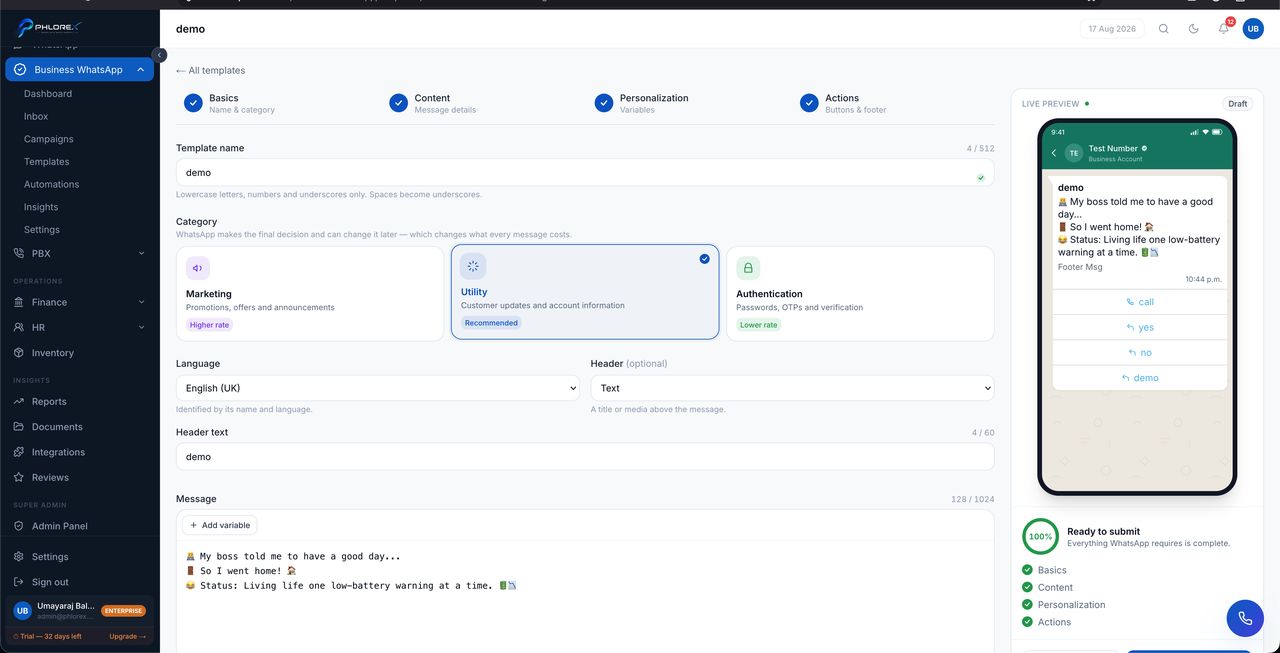
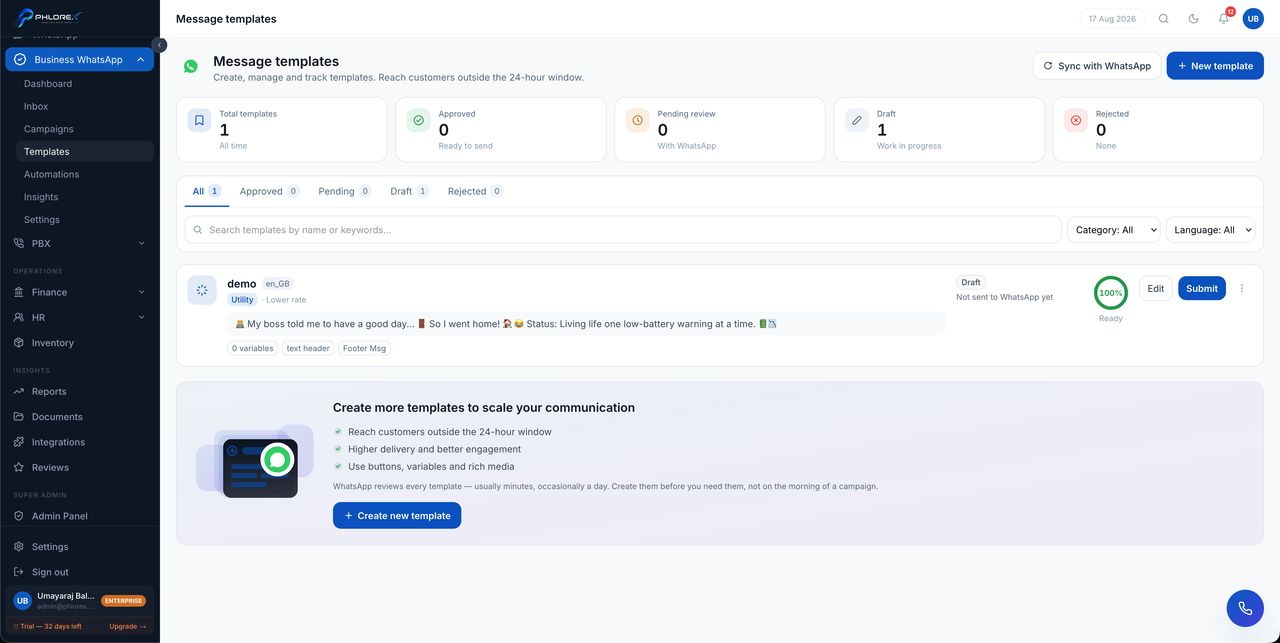
Templates are pre-approved messages. They are what lets you start a conversation, or continue one after the service window has closed.
Business WhatsApp›Templates
- Select New template.
- Choose a category — marketing, utility or authentication. Choose honestly; a misclassified template is rejected.
- Write the content, using placeholders for the parts that change such as a name or an order number.
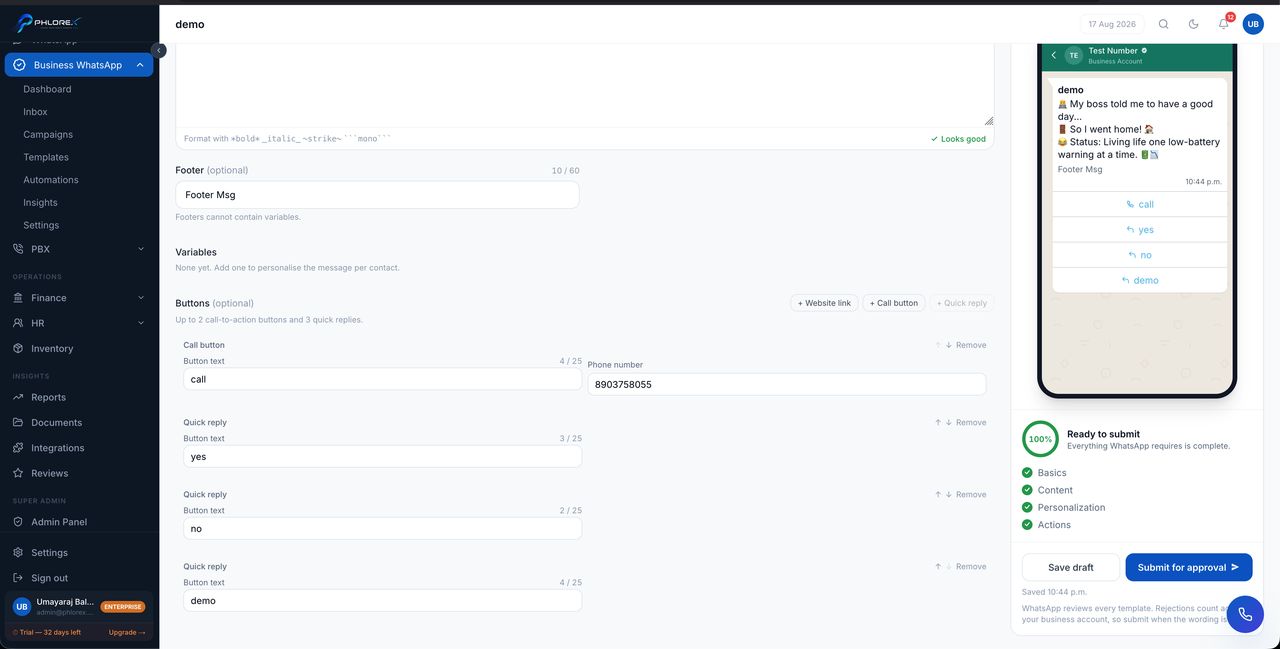
- Add buttons if you want them — a link, a phone number, or a quick reply.
- Submit for approval.
| Status | Meaning |
|---|---|
| Pending | With Meta for review |
| Approved | Ready to send |
| Rejected | Not accepted — edit and resubmit |
| Paused | Suspended after negative customer feedback |
Tip
Rejections are usually about category or tone. Promotional content submitted as a utility template is the commonest cause.
Buttons
Buttons make a template far more useful than plain text — a link to your page, a call button, or quick replies the customer can tap. They are edited separately from the body, and they count towards approval too.
Important
Templates can be paused automatically if recipients report them. Keep them relevant and expected, and give people an easy way to opt out.
Cannot find what you need?
Something not behaving as described here? Tell us and we will fix the page.