
Browse help sections
Integrations
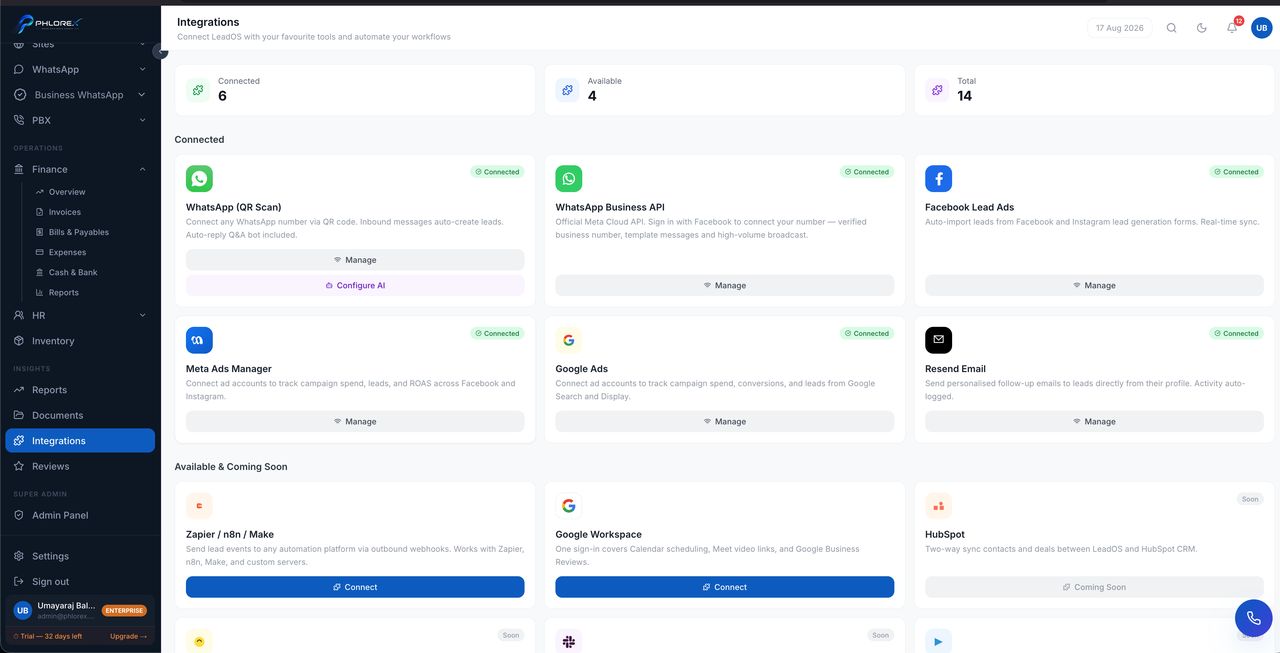
Every app LeadOS can connect to, with its current status — connected, available, or coming soon.
Insights›Integrations
This is the starting point for most connections. Each card shows what the integration does and a button to connect or manage it.
| Status | Meaning |
|---|---|
| Connected | Live and working |
| Available | Ready to connect |
| Initializing | Connecting — wait for it to settle |
| Error | Something needs attention, usually a lapsed authorisation |
| Coming soon | Not yet available |
Take care
An integration showing Error has usually had its authorisation revoked at the other end — someone changed a password, or removed a permission. Reconnect from its card rather than investigating.
Step-by-step guides for each are in Connections.
Connect or fix an app
- Open Insights → Integrations.
- Find the app and read its status.
- Select Connect and follow the sign-in prompts.
- If it shows Error, select reconnect — the authorisation has usually lapsed.
- Confirm the card reads Connected before relying on it.
Cannot find what you need?
Something not behaving as described here? Tell us and we will fix the page.