
Browse help sections
Email marketing
GROWTHRequires the growth plan or above.
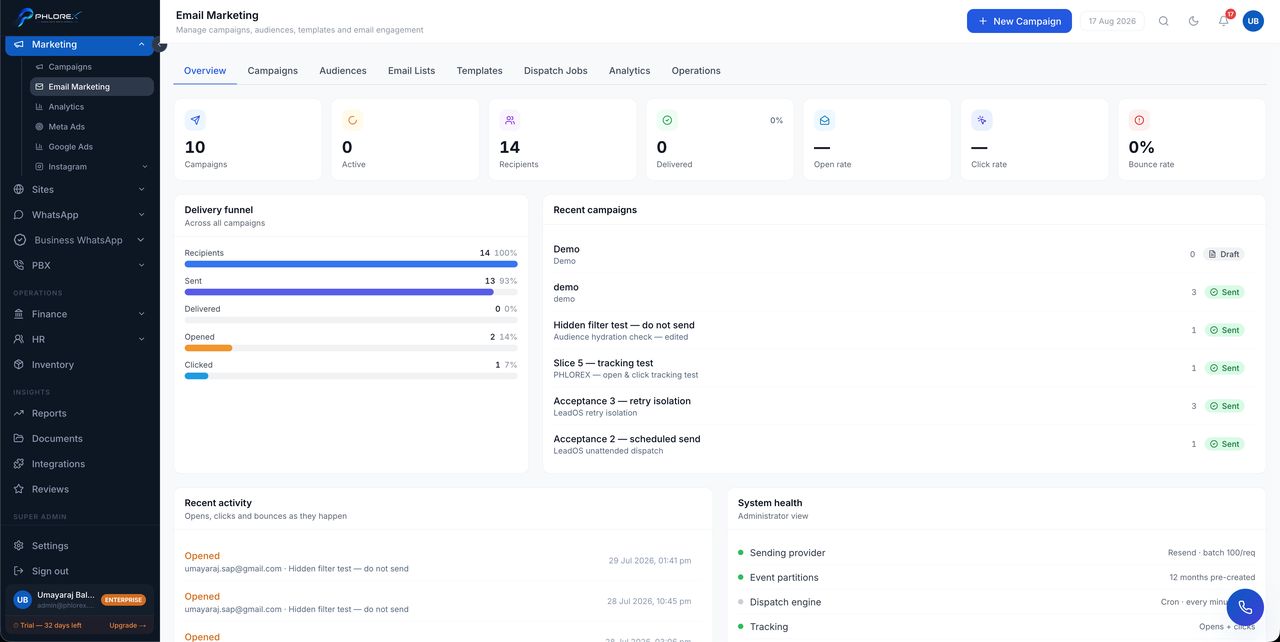
Send campaigns to a segment of your contacts and see what happened. The overview dashboard is the summary; everything else sits on its own tab.
Marketing›Email Marketing
| Tab | What it is for |
|---|---|
| Overview | Headline performance across recent sends |
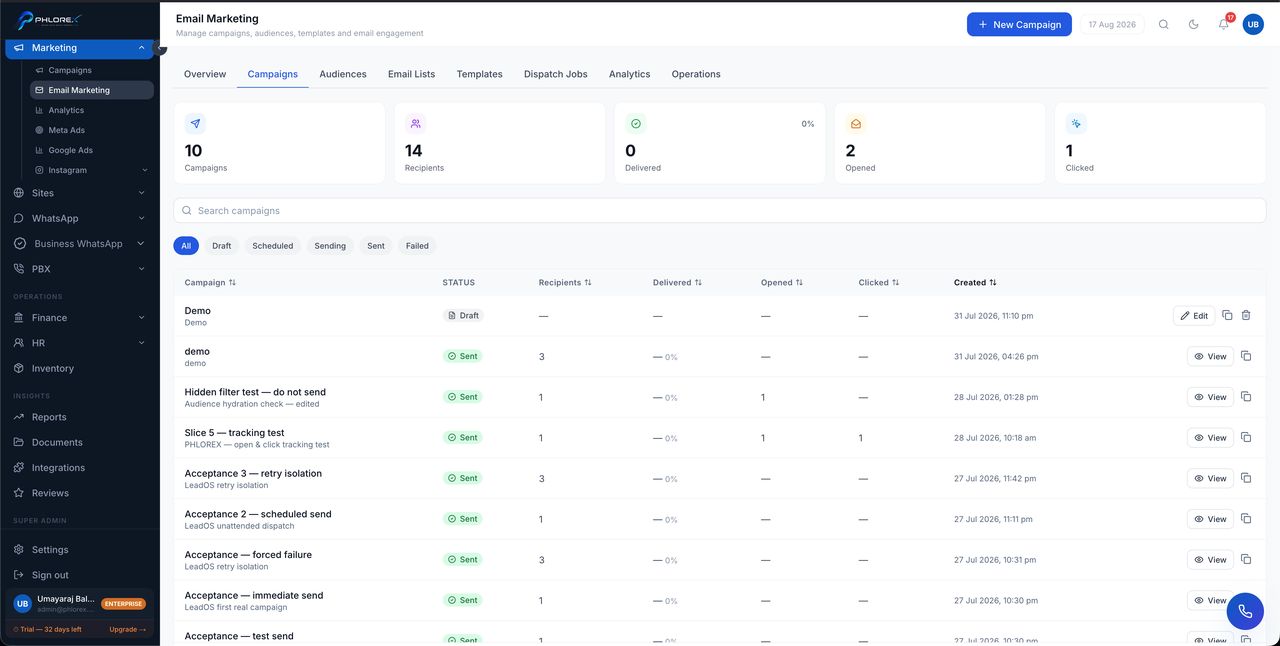
| Campaigns | Every campaign and its status |
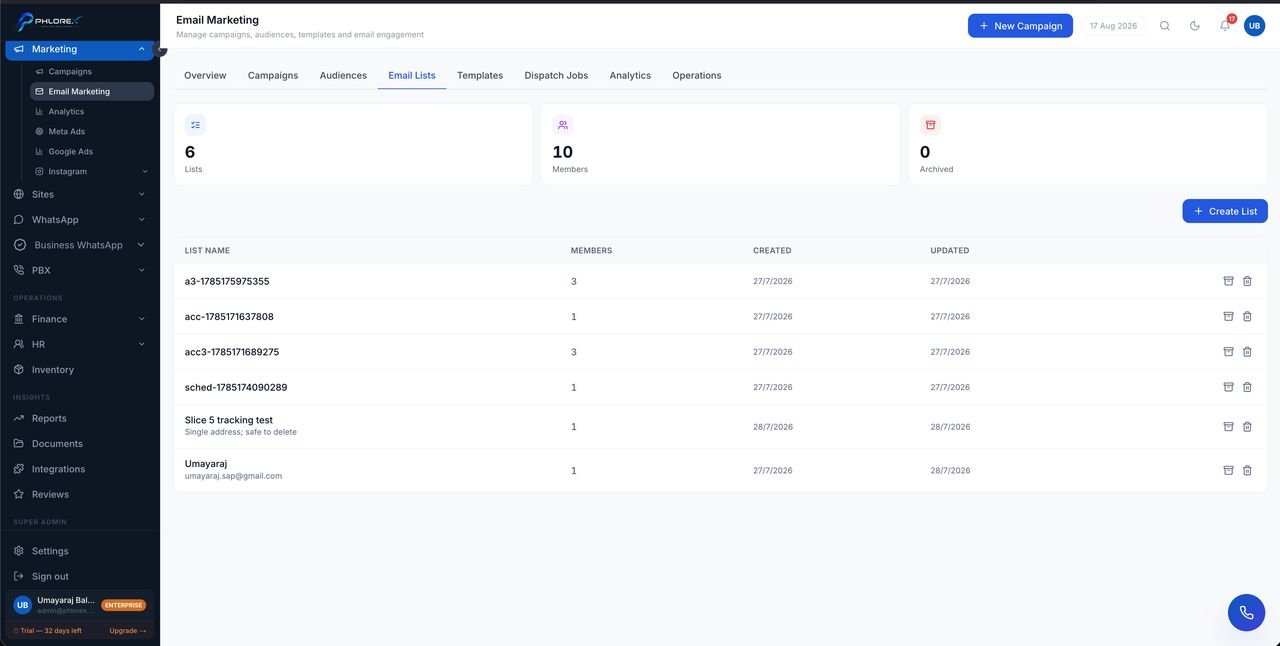
| Lists | The audiences you send to |
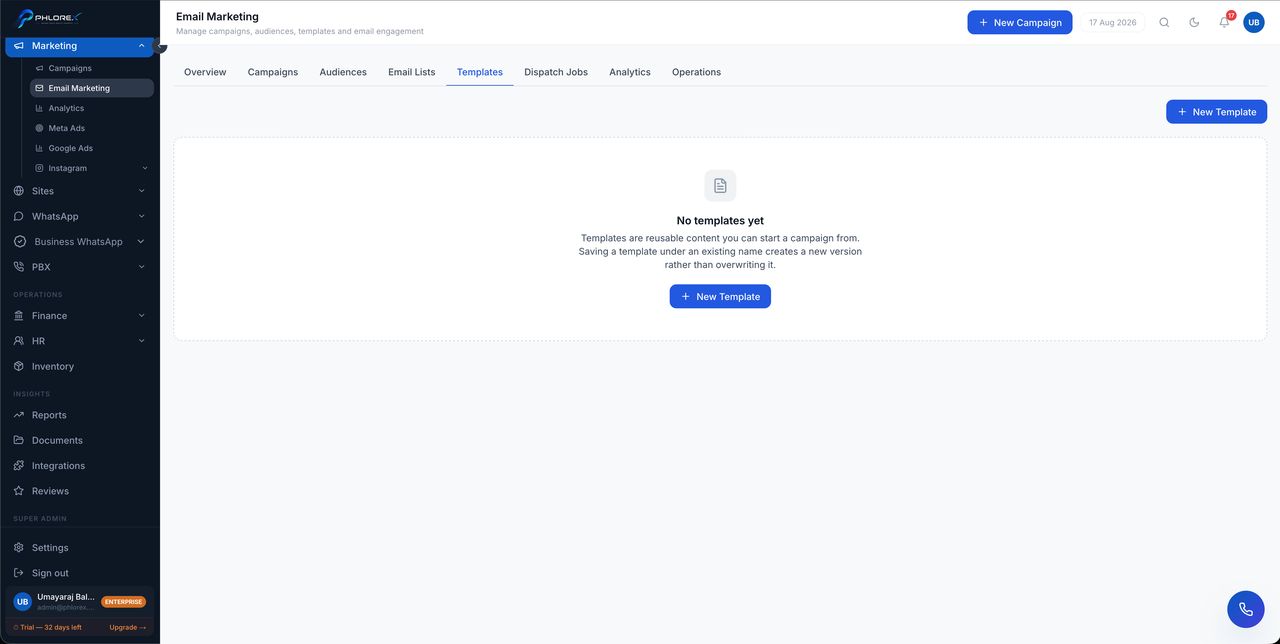
| Templates | Reusable email designs |
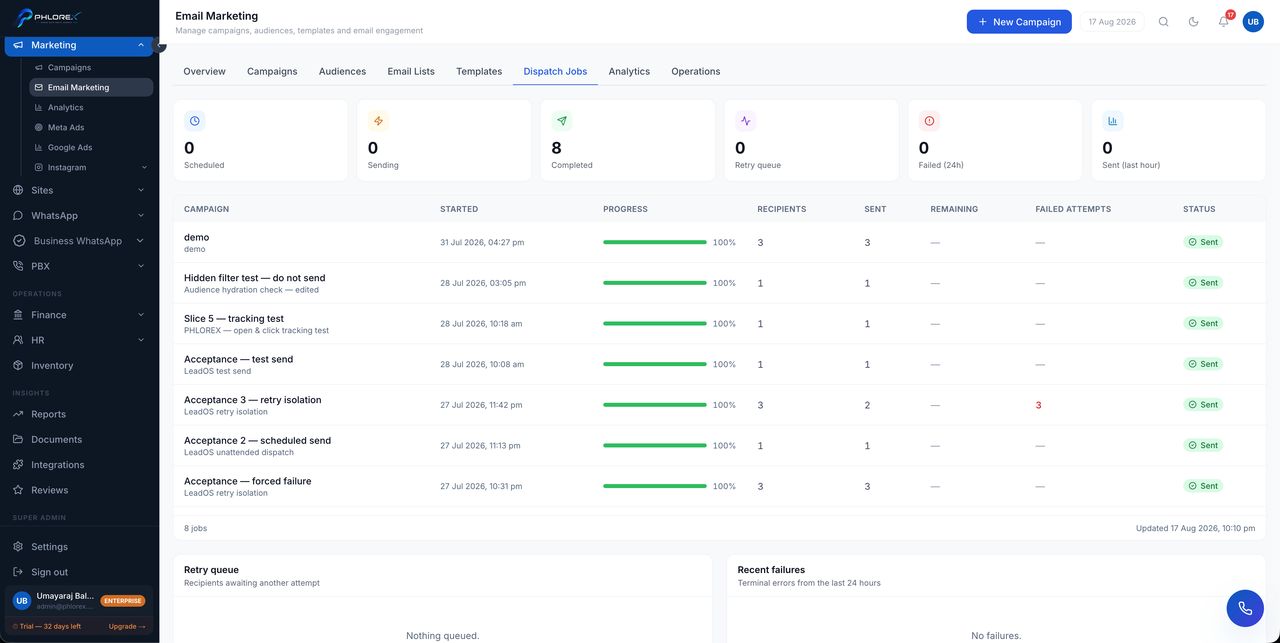
| Dispatch jobs | Sends in progress, with per-batch progress |
| Analytics | Delivery, opens, clicks and trends |
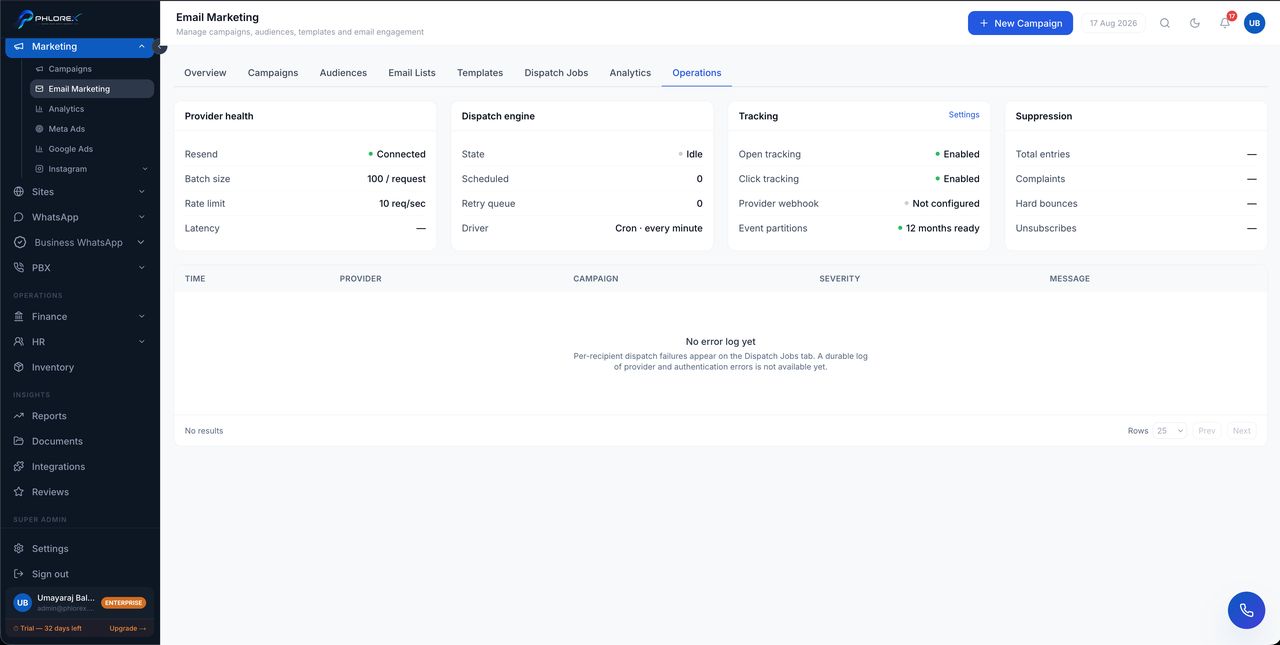
| Operations | Suppressions and sender health |
Send a campaign
- Select New campaign.
- Write the subject line and the message.
- Choose the audience — filter by status, source, owner, company or country.
- Check the recipient count. If it is not roughly what you expected, fix the filter before sending.
- Send a test to yourself and read it on a phone.
- Send.
Dispatch jobs
A large send does not go out all at once. The dispatch-jobs view shows the job working through its batches, so a campaign that looks "stuck" is usually just partway through.
Take care
Requires a connected sender — see Connect email sending. Verify your domain first, or your campaign is likely to land in spam.
Each tab
Cannot find what you need?
Something not behaving as described here? Tell us and we will fix the page.