
Browse help sections
Instagram Comment Moderation
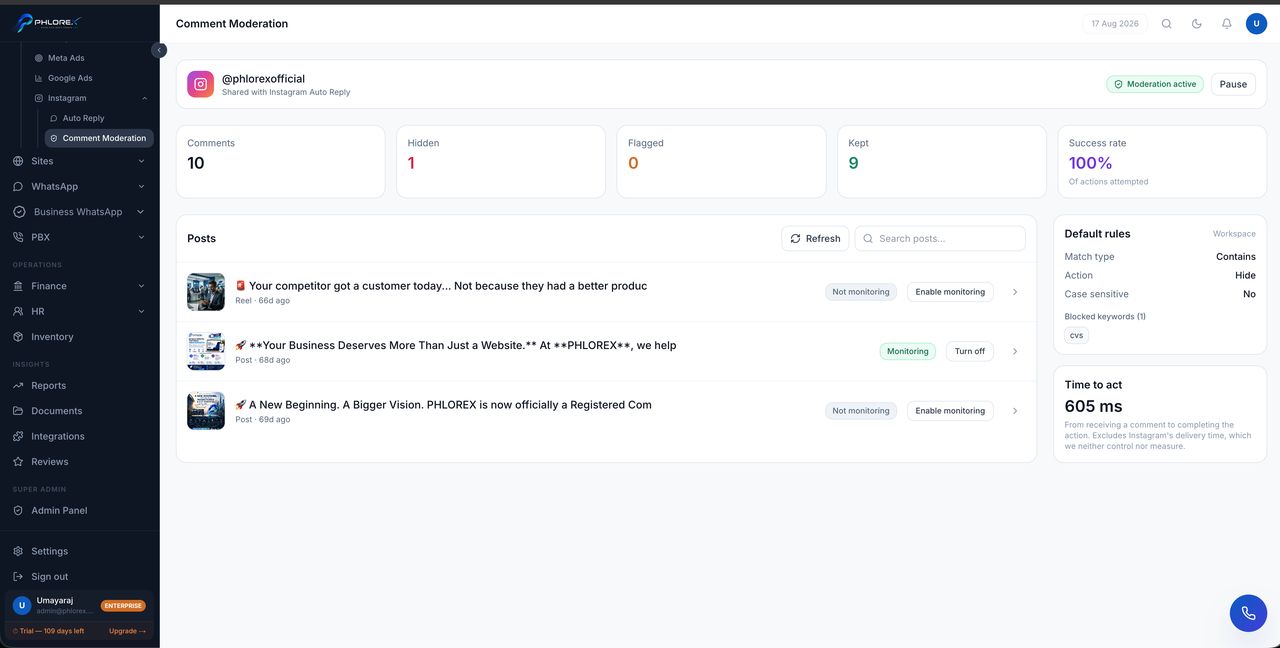
Moderation watches the comments on your posts so your team can answer real questions and remove the rest, instead of losing both under a post.
Posts, then a post
The main screen lists your posts. Open one and you get everything about that post on tabs:
| Tab | What it holds |
|---|---|
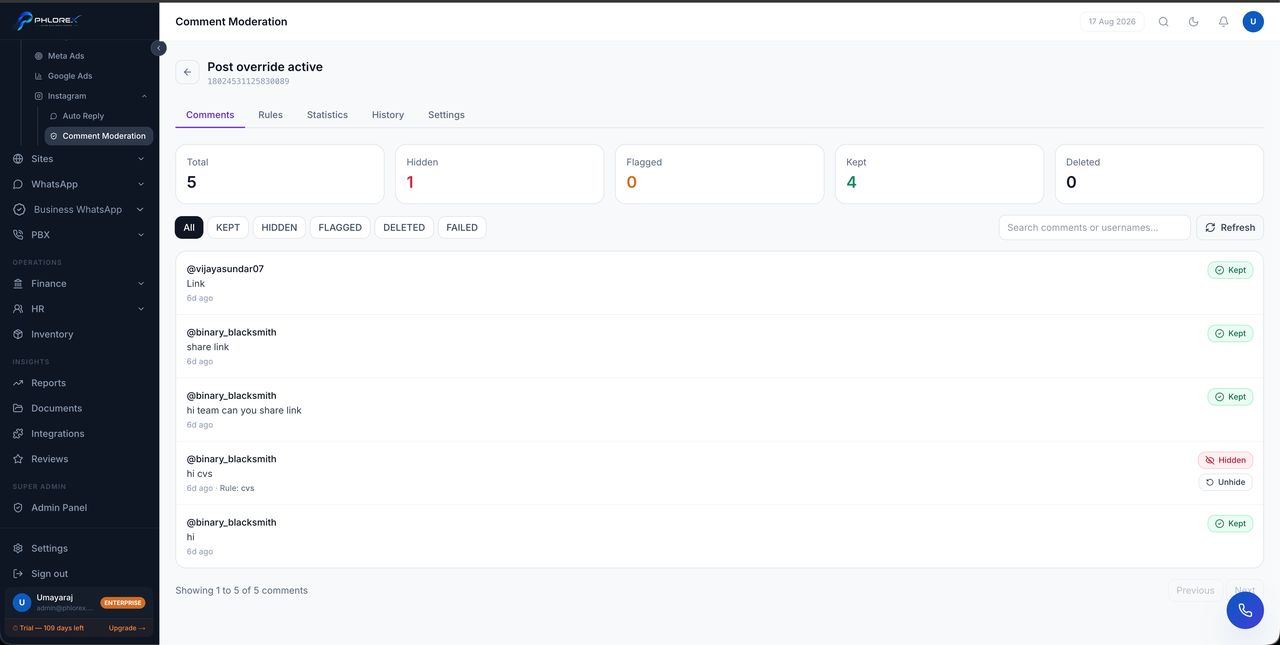
| Comments | Every comment, with reply and hide actions |
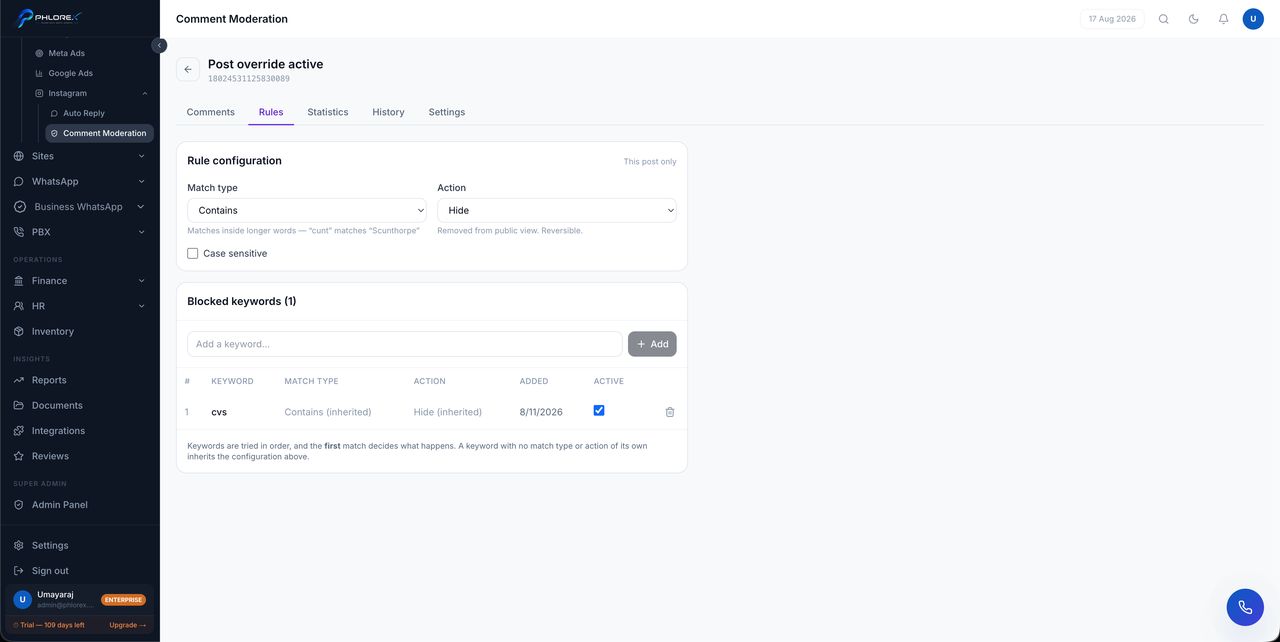
| Rules | The keyword rules applied to this post |
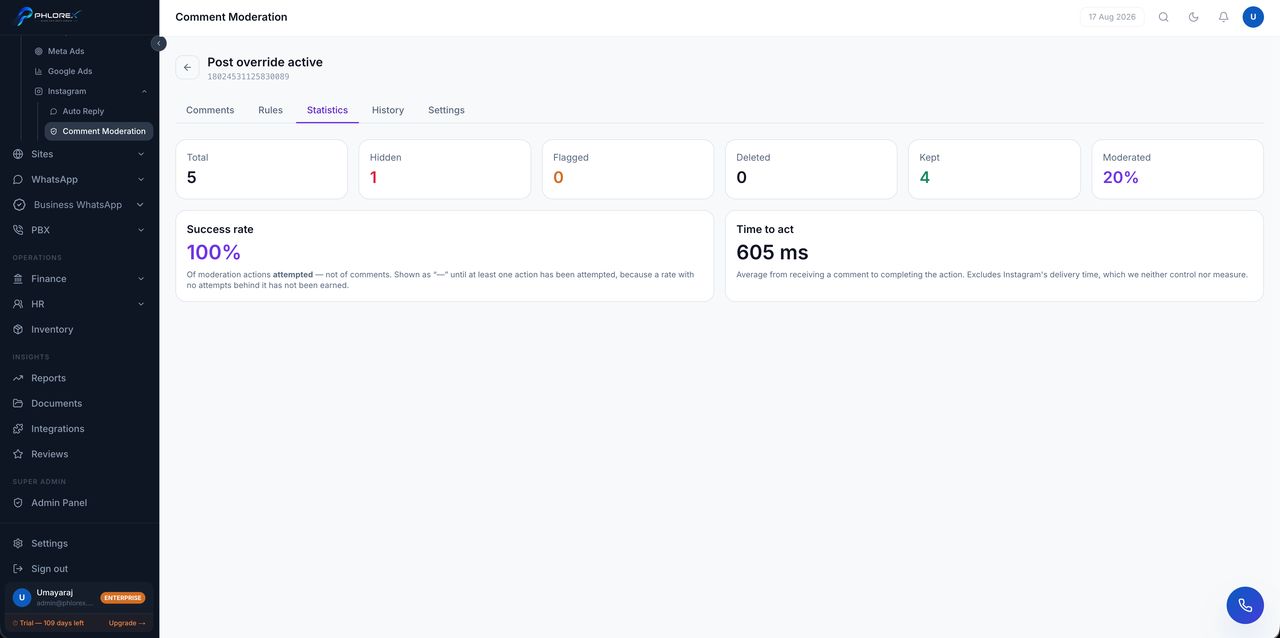
| Statistics | How much was caught, replied to, or hidden |
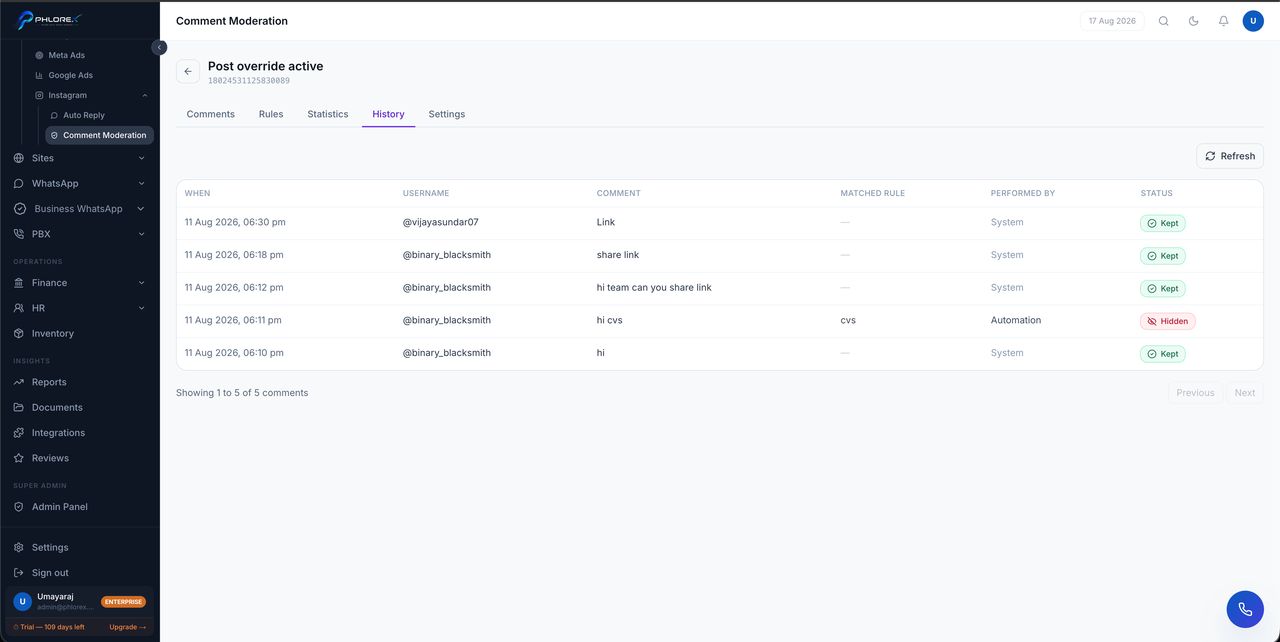
| History | What was actioned, when, and by whom |
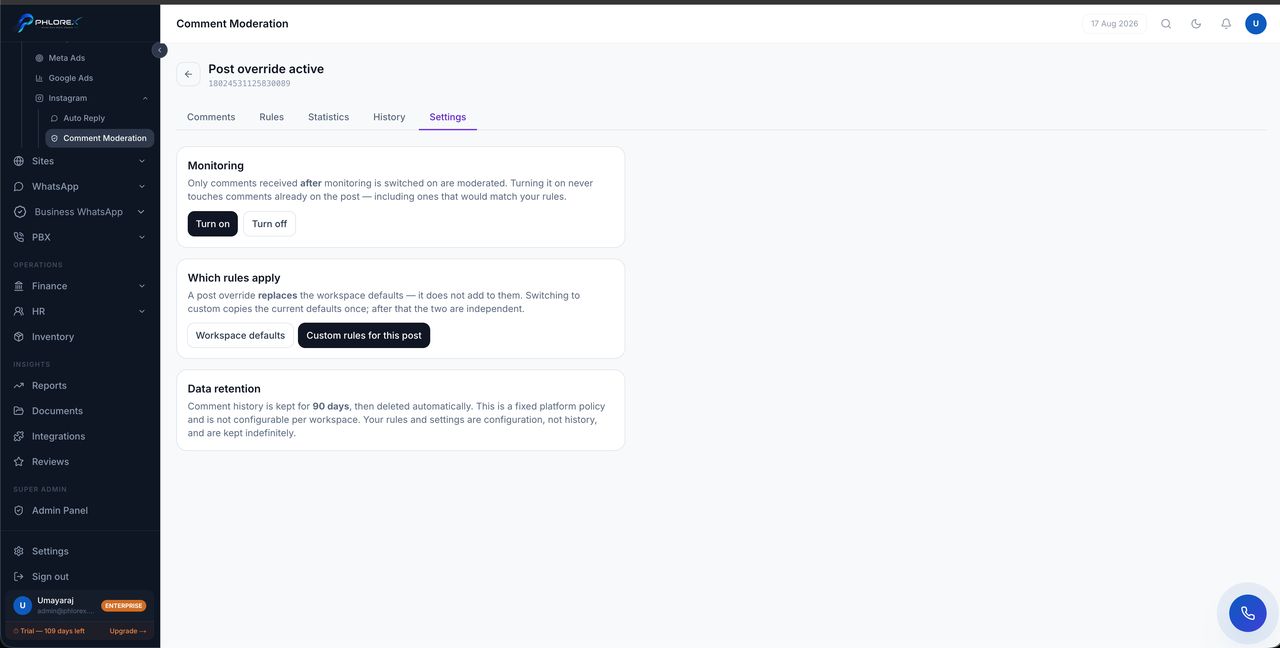
| Settings | Whether this post overrides your workspace defaults |
Workspace rules and per-post overrides
You set keyword rules once for the workspace, and any post can override them. That is what the Settings tab is for — a launch post that attracts a different kind of comment can be moderated differently without changing the rules everywhere else.
Acting on a comment
- Open the post's Comments tab.
- Reply publicly, hide the comment, or leave it.
- Turn a genuine enquiry into a prospect so it is followed up properly.
Hiding removes a comment from public view without notifying its author. It is the right tool for spam and abuse, and the wrong tool for a complaint — which is better answered.
The History tab matters when several people moderate. It is the record of who hid what, which is the first thing you will want if a customer asks why their comment disappeared.
The five tabs on a post
Cannot find what you need?
Something not behaving as described here? Tell us and we will fix the page.