
Browse help sections
Invoices
GROWTHRequires the growth plan or above.
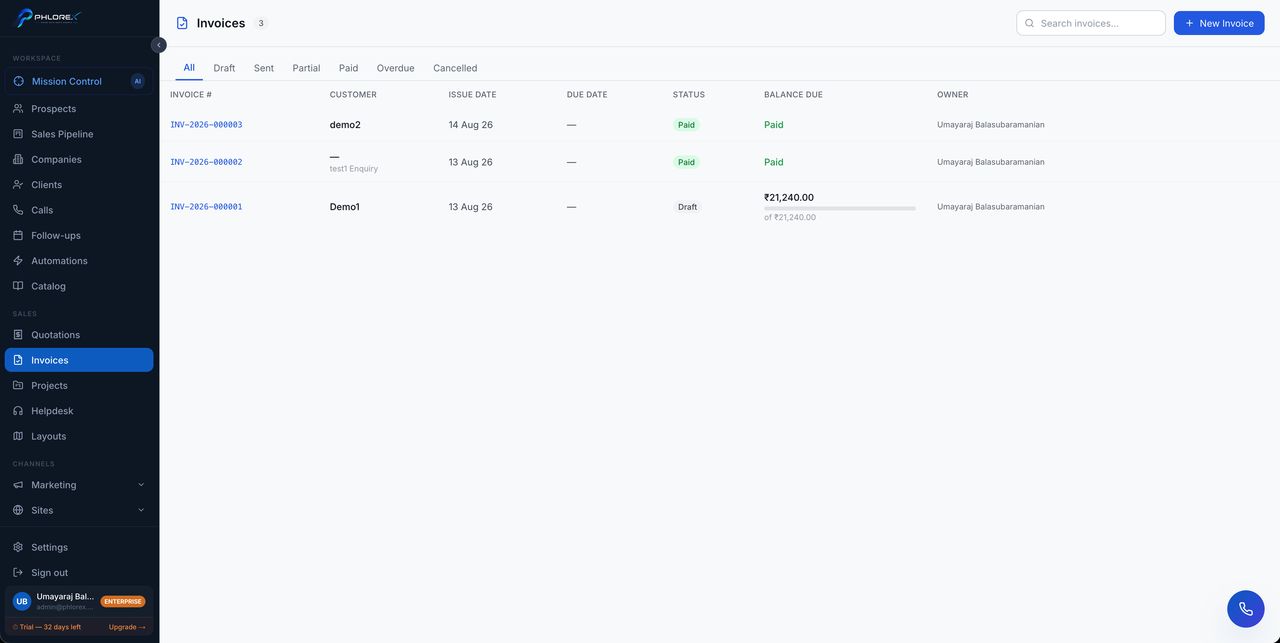
Bill customers, send the invoice, and track what is owed until it is paid.
Sales›Invoices
- Select New invoice and choose the customer.
- Add line items, or convert an accepted quotation so nothing is retyped.
- Set tax, due date and payment terms.
- Review the PDF and send it.
The invoice record
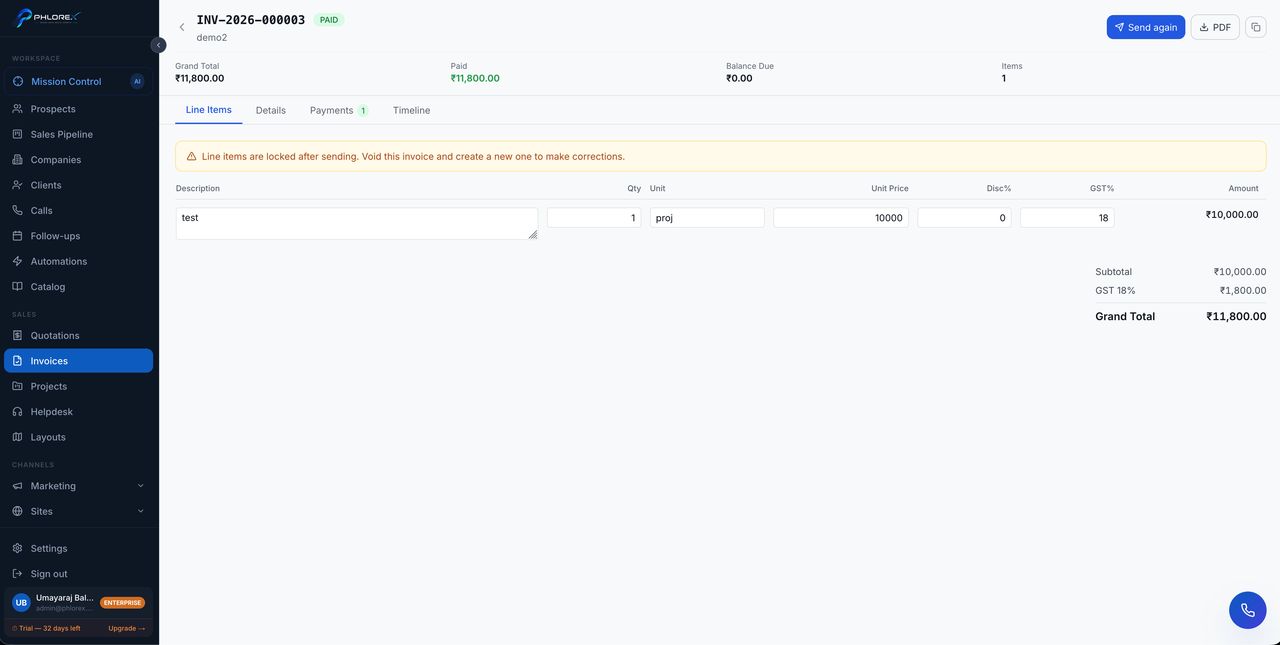
An open invoice has a line items tab showing exactly what is being billed, and a timeline tab recording everything that has happened to it — sent, viewed, paid, reminded.
Statuses
| Status | Meaning |
|---|---|
DRAFT | Not yet issued — fully editable |
SENT | Issued and awaiting payment |
PARTIALLY_PAID | Some payment received, a balance remains |
PAID | Settled in full |
OVERDUE | Past its due date and unpaid |
CANCELLED | Withdrawn before it counted |
VOID | Cancelled after issue, kept for the audit trail |
Correcting an invoice
Take care
An issued invoice should not simply be edited — that breaks the record your accounts depend on. Void it to cancel while keeping the history, then raise a corrected one. Voiding is deliberately a separate permission from creating, so it can be held by fewer people.
Tip
Overdue invoices are flagged automatically each day and surface on your dashboard — you do not need to check manually.
Cannot find what you need?
Something not behaving as described here? Tell us and we will fix the page.