
Browse help sections
Send a quotation or invoice
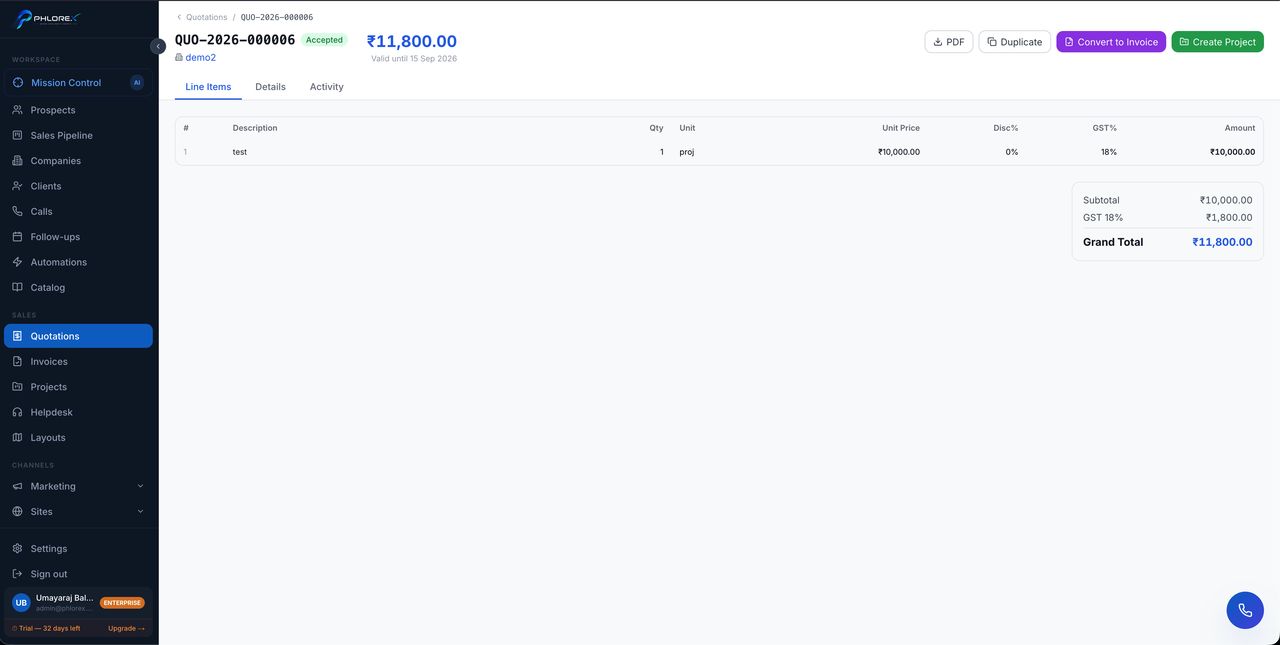
Quotations and invoices are delivered from LeadOS itself, so the send is recorded, the customer gets a link they can act on, and you can see what happened to it afterwards.
- Open the quotation or invoice.
- Check the PDF preview — this is exactly what the customer receives.
- Choose Send for email, or Send on WhatsApp.
- Confirm the address or number, prefilled from the record.
- Send.
Three delivery routes
| Channel | Use it when |
|---|---|
EMAIL | The default. Gives you delivery and open tracking |
WHATSAPP | The customer already talks to you there |
MANUAL | Recorded for anything delivered outside LeadOS — printed, handed over, or sent from a personal mailbox |
Record a manual delivery even though LeadOS did not send it. Otherwise the document looks unsent and someone will send it again.
What happened to it
| Status | Meaning |
|---|---|
QUEUED | Accepted, not yet handed to the provider |
SENT | Handed over for delivery |
DELIVERED | Confirmed delivered |
BOUNCED | Rejected — wrong address, or refusing mail |
FAILED | Could not be sent |
Events also record OPENED and CLICKED, so you can see whether a quotation was looked at before you chase it. See Email tracking for how much to trust each.
Email sending needs a connected sender — see Connect email sending. Without one the send fails rather than queuing.
The customer's side
They open a secure link with no login, read it, and select Accept or Decline. You see the outcome immediately, so you know it landed rather than guessing.
Cannot find what you need?
Something not behaving as described here? Tell us and we will fix the page.