
Browse help sections
Connect WhatsApp by QR scan
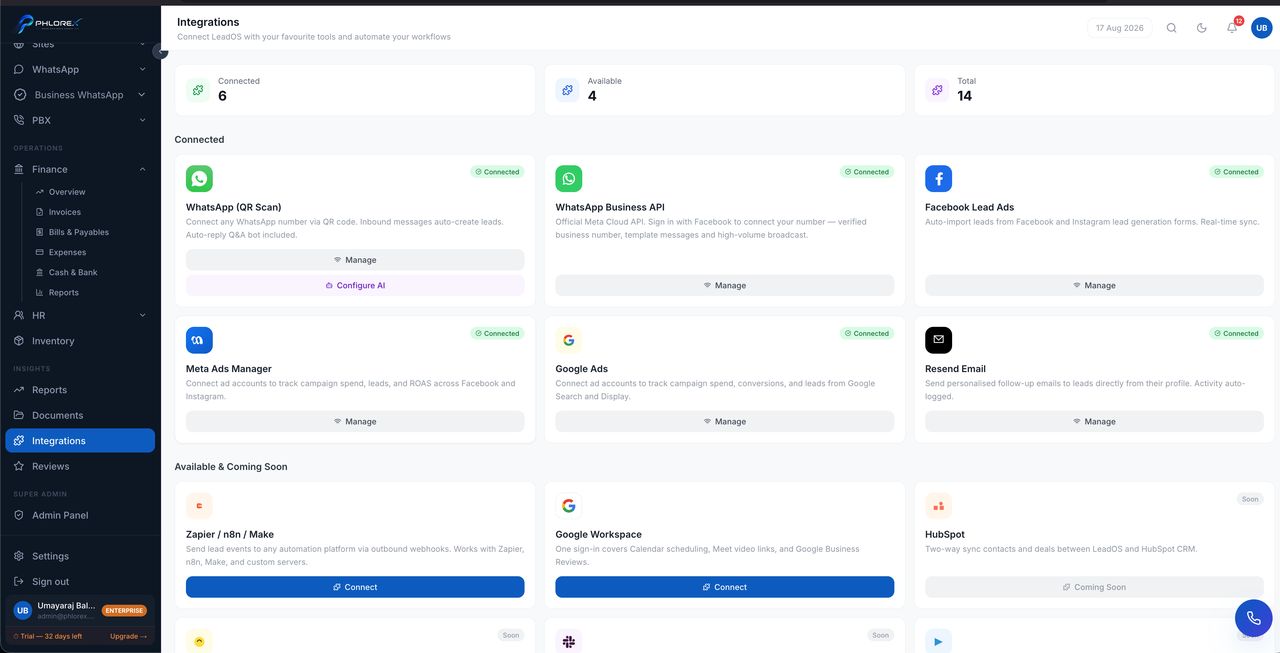
This connects an ordinary WhatsApp number — the one already on a phone in your office — by scanning a QR code, exactly like WhatsApp Web. Incoming messages create prospects automatically.
Insights›Integrations›WhatsApp (QR Scan)
Before you start
- Have the phone in your hand, charged and online.
- Use the number your customers already message — changing it later means reconnecting from scratch.
- One number per workspace.
- Open Integrations and select Connect on the WhatsApp (QR Scan) card.
- On the phone, open WhatsApp and go to Settings → Linked devices → Link a device.
- Point the phone at the QR code on your screen.
- Wait for the card to show Connected with your number.
If you cannot scan, use the pairing-code option instead — LeadOS shows an eight-character code you enter under Link with phone number.
Keeping it connected
- The phone must stay online. A long spell off or without data drops the link.
- Unlinking LeadOS from Linked devices on the phone also disconnects it here.
- Reconnecting can replay recent history into your inbox — that is WhatsApp, not a duplicate bug.
Important
This uses your number as a linked device. It gives you no verified tick, no message templates and no high-volume broadcast. For those, use WhatsApp Business API.
Next: Conversations.
Cannot find what you need?
Something not behaving as described here? Tell us and we will fix the page.