
Browse help sections
Domains
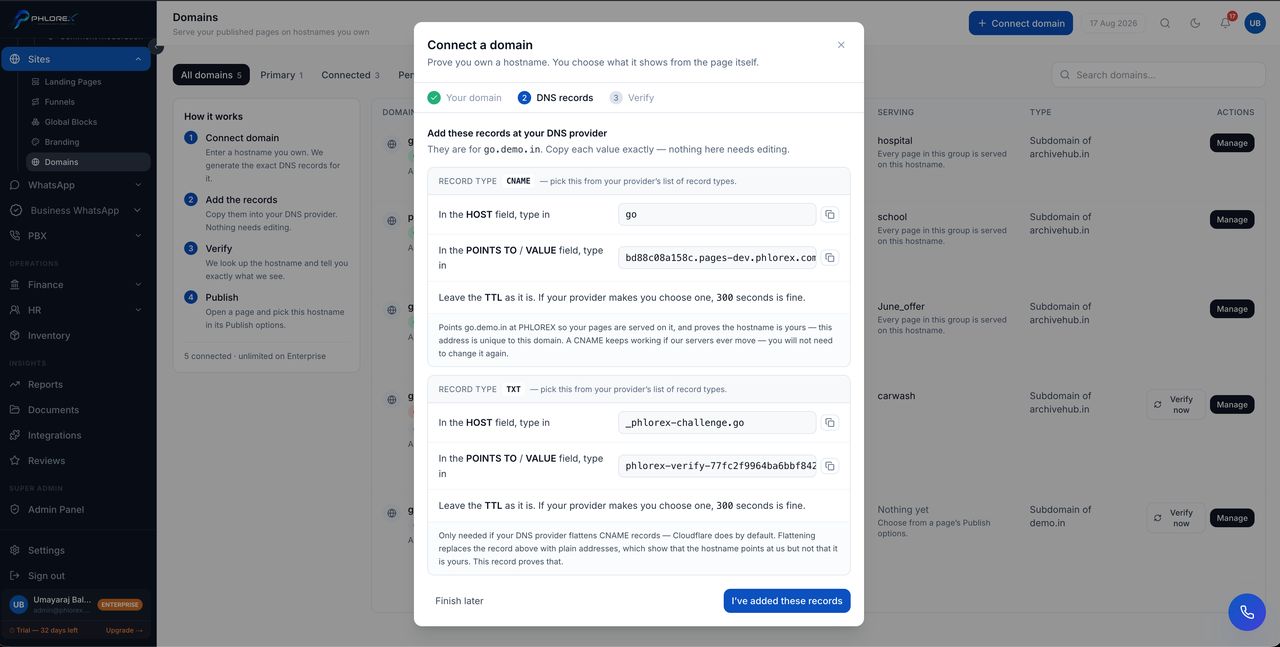
Publish on your own web address instead of a LeadOS one. Visitors see your brand, and your traffic and search reputation build on your domain.
Connect a domain
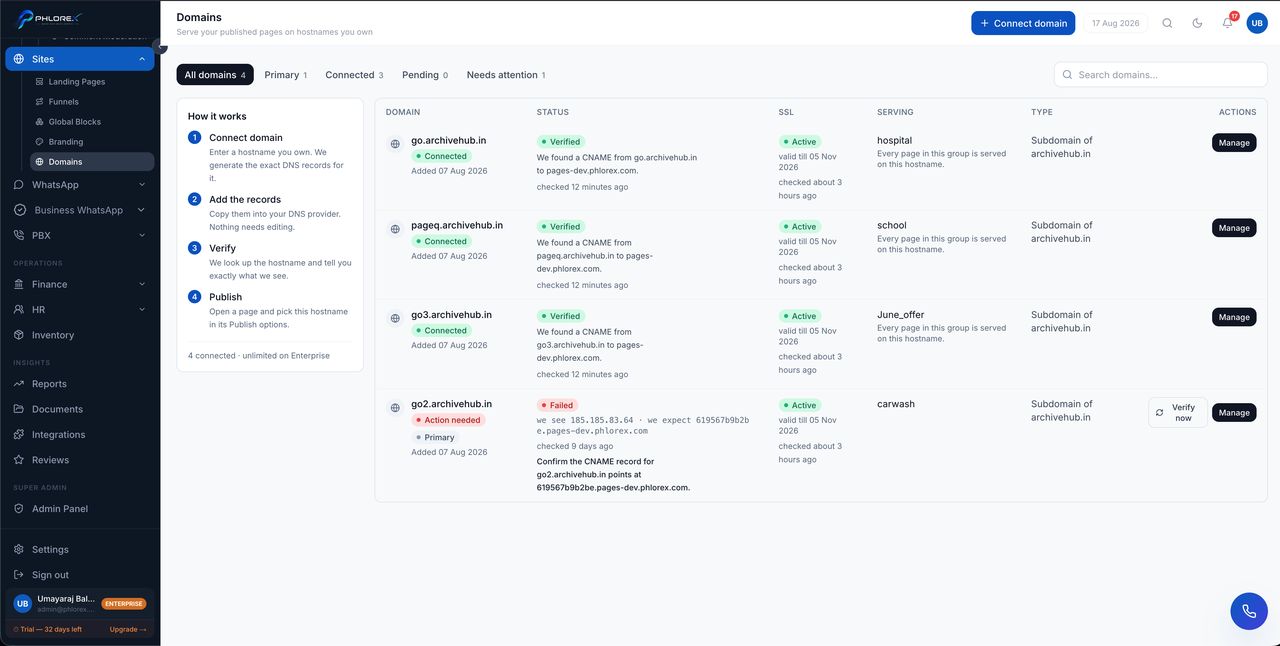
- Select Add domain.
- Type the exact domain or subdomain you want, for example
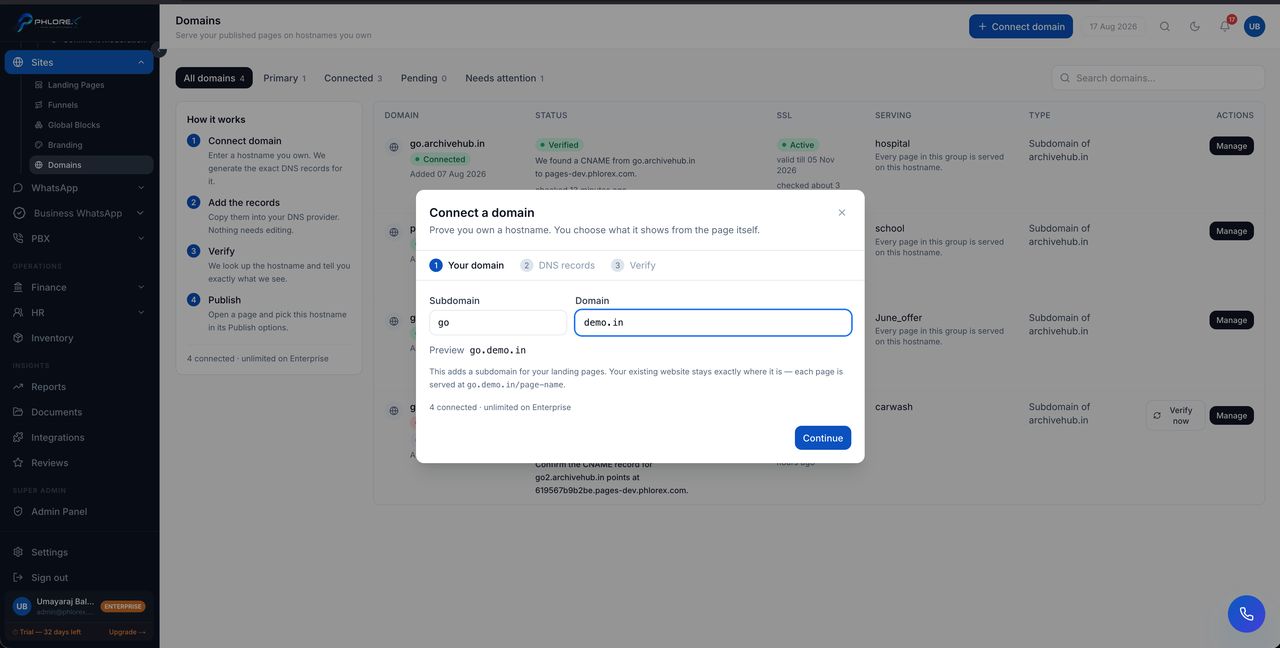
offers.yourbusiness.com. - LeadOS shows the DNS records to create.
- Create those records exactly as shown at your domain provider.
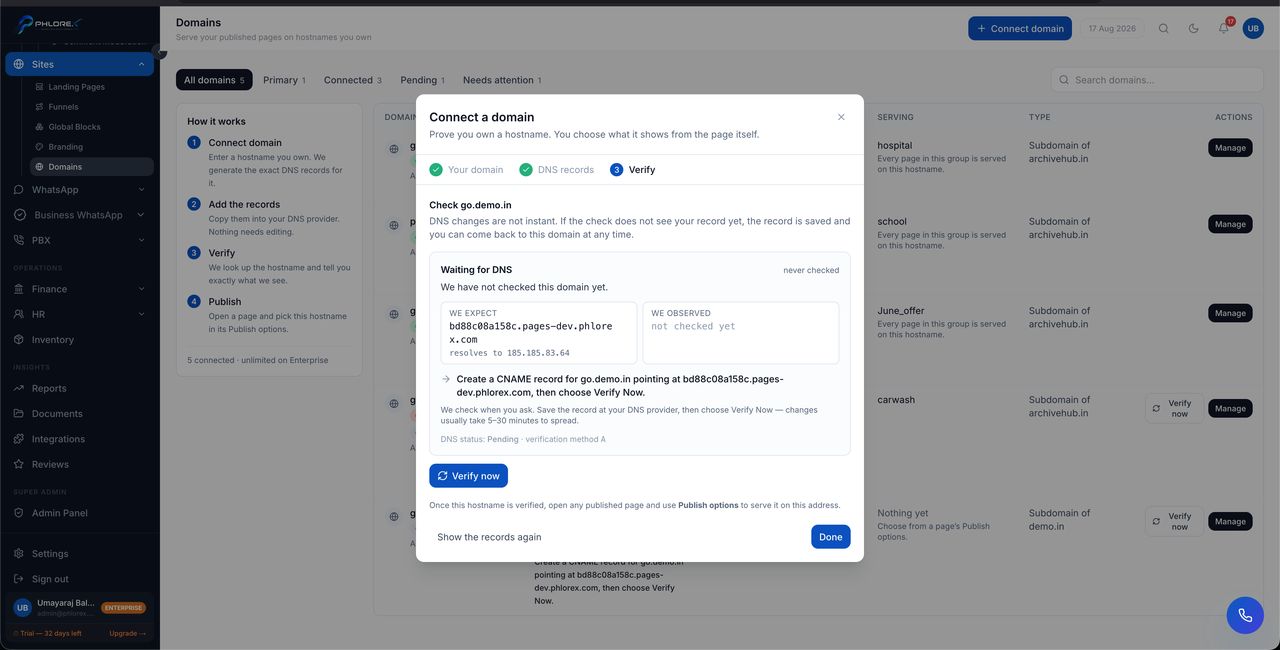
- Return and select Verify.
Once DNS has propagated the domain is confirmed and the secure certificate is issued automatically. The list shows each domain's verification status, so you can see what is still pending.
DNS changes take anywhere from minutes to hours. If verification fails immediately after you add the record, wait before changing anything.
Add the domain here before pointing DNS at LeadOS. Changing DNS first takes the address offline until verification completes.
Using it on a page
- Open the page in the builder.
- Select Publish options.
- Choose your domain and set the path if you want one.
- Select Done.
A domain only appears in that list once its DNS check has passed. If you have added one and cannot select it, verification has not completed yet.
Cannot find what you need?
Something not behaving as described here? Tell us and we will fix the page.