
Browse help sections
The page builder
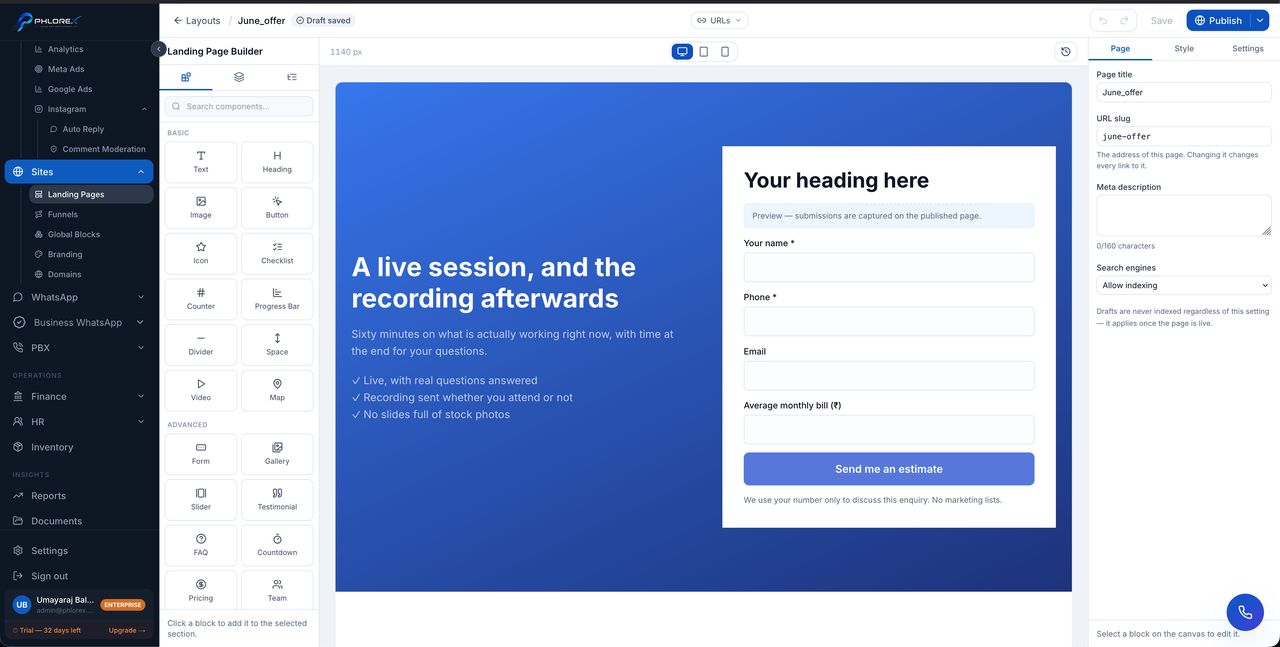
Three zones: blocks to add on the left, your page in the middle, and settings for whatever is selected on the right.
The top bar
- The page name, with Draft saved or Live beside it.
- URLs — where the page can be reached.
- Undo and redo.
- Save keeps your work without changing what visitors see.
- Publish makes it live; once live the button becomes Update.
Save and Publish are not the same. Saving a live page changes nothing for visitors until you select Update — which is what lets you edit a live page safely.
Sections and blocks
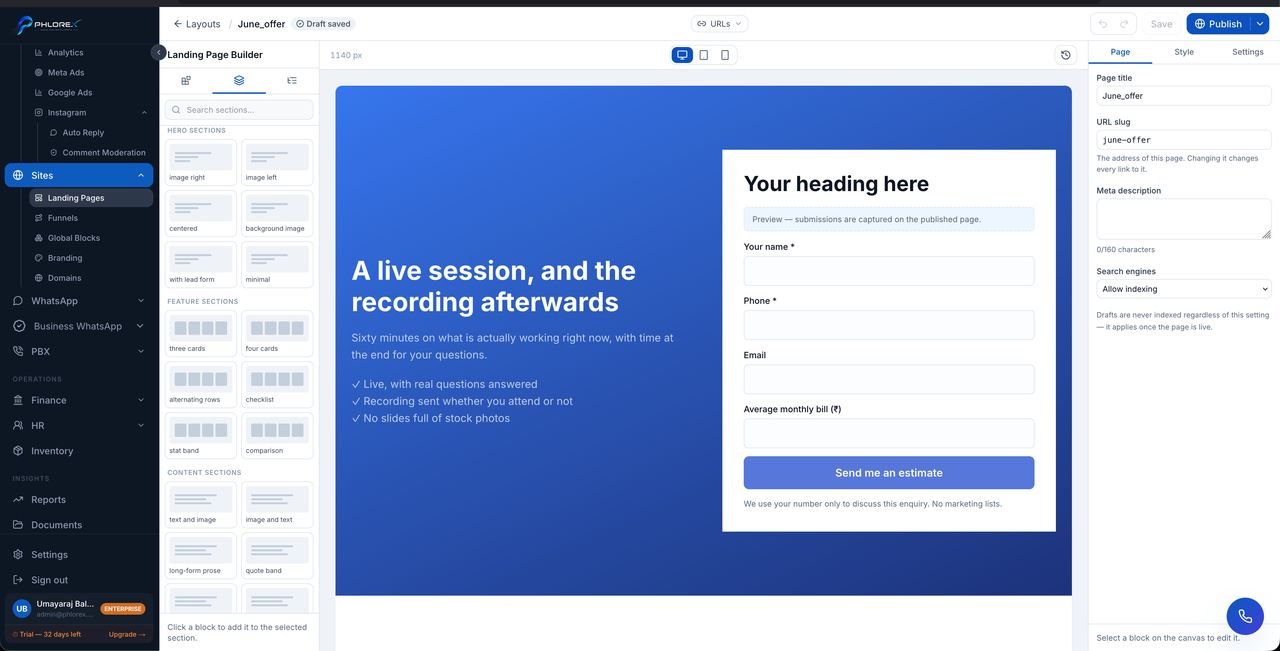
A page is built from sections — full-width bands — each holding blocks.
| Group | What is available |
|---|---|
| Hero sections | image right, image left, centered, background image, with lead form, minimal |
| Feature sections | three cards, four cards, alternating rows, checklist, stat band, comparison |
| Content sections | text and image, image and text, quote band, and more |
| Basic blocks | Text, Heading, Image, Button, Icon, Checklist, Counter, Progress Bar, Divider, Space, Video, Map |
| Advanced blocks | Form, Gallery, Slider, Testimonial, FAQ, Countdown, Pricing, Team |
Your global blocks appear at the top of the sections tab, each showing how many pages use it.
The Form block is the one that matters — it is what turns a visitor into a prospect. A page without one looks finished and captures nothing.
The outline
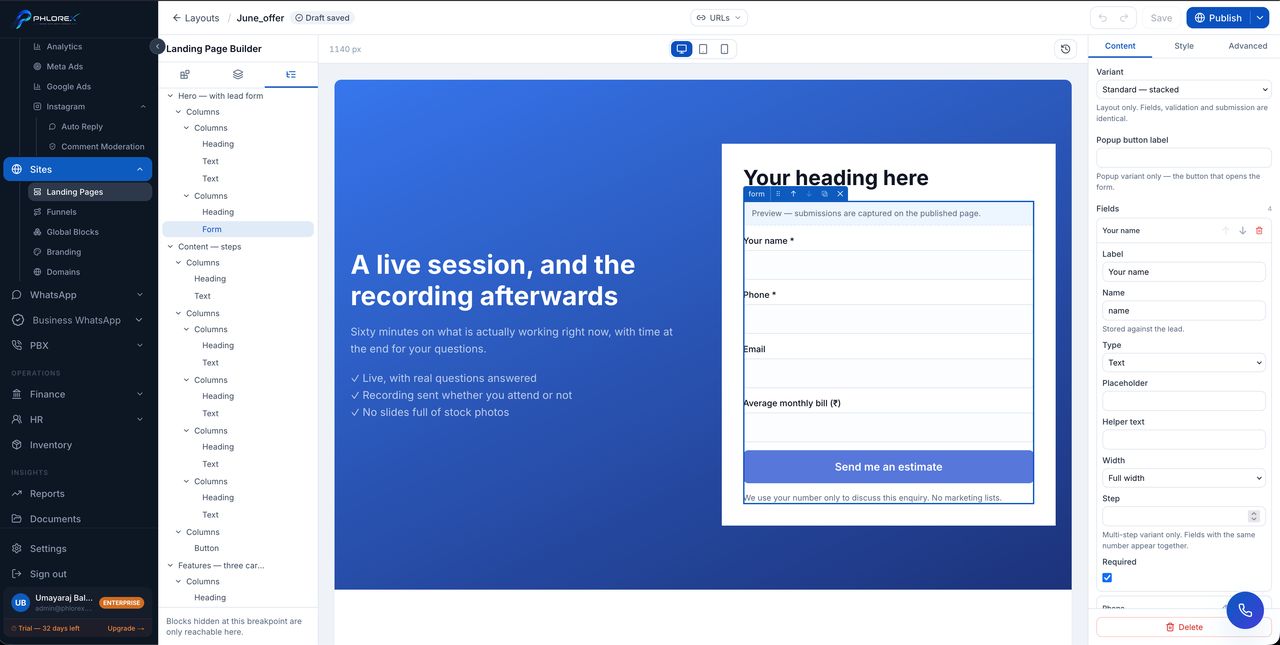
The third tab shows the page as a tree — every section and every block nested inside it. It is the fastest way to select something buried in a layout.
Blocks hidden at the current breakpoint can only be reached from the outline. If a block seems to vanish when you switch to mobile, it is here — not lost.
Page settings
| Field | What it does |
|---|---|
| Page title | Shown in the browser tab and in search results |
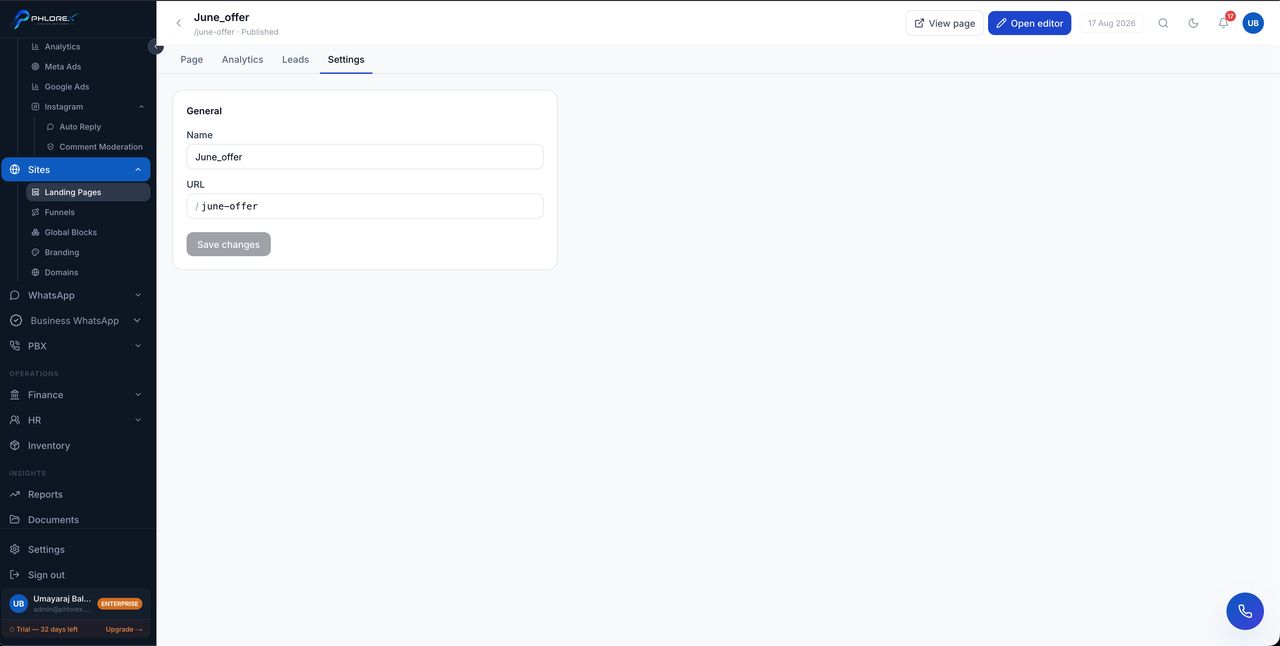
| URL slug | The address. Changing it changes every link to the page |
| Meta description | The summary under your search result. 160 characters |
| Search engines | Whether the page may be indexed once live |
Changing the slug of a page already in circulation breaks every existing link, including live ads. Change it before you share the page, not after.
Drafts are never indexed whatever the search-engine setting says. That setting only takes effect once the page is live.
Build a page
- Add a section from the sections tab — start with a hero.
- Click the section to select it, then click blocks in the left rail to add them.
- Click any block on the canvas to edit it in the right panel.
- Add a Form block — without one the page captures nothing.
- Switch to tablet and mobile and fix anything that breaks.
- Fill in the page title, slug and meta description.
- Select Save, then Publish when you are ready.
Cannot find what you need?
Something not behaving as described here? Tell us and we will fix the page.