
Browse help sections
Publish and share a page
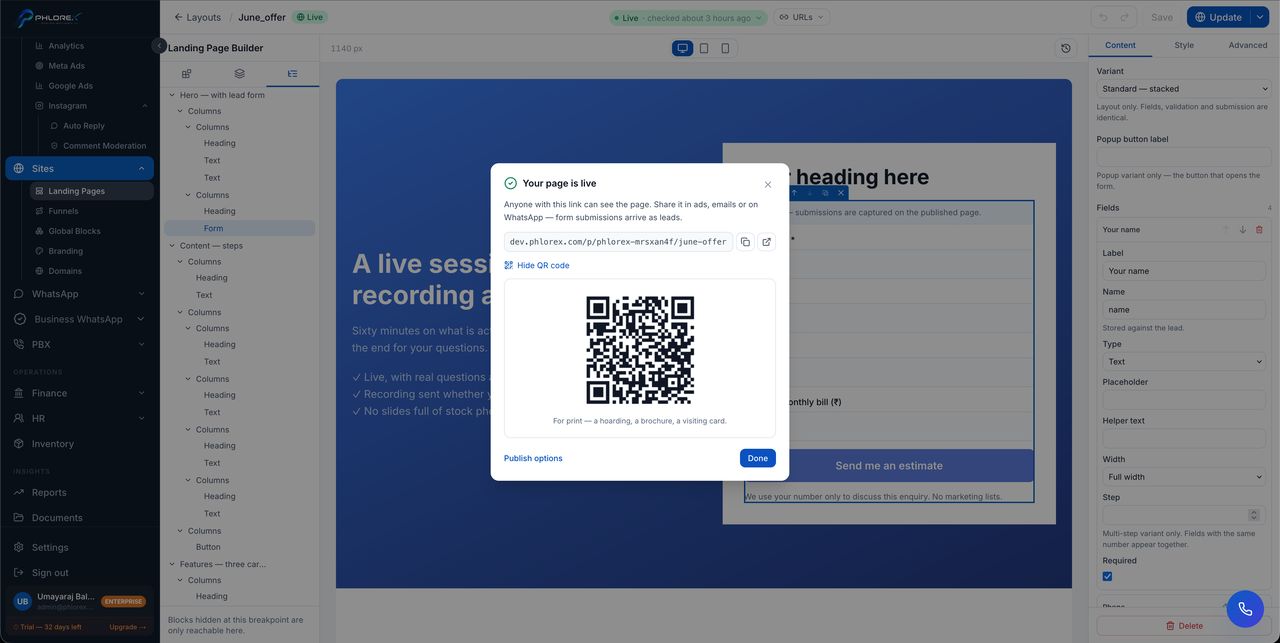
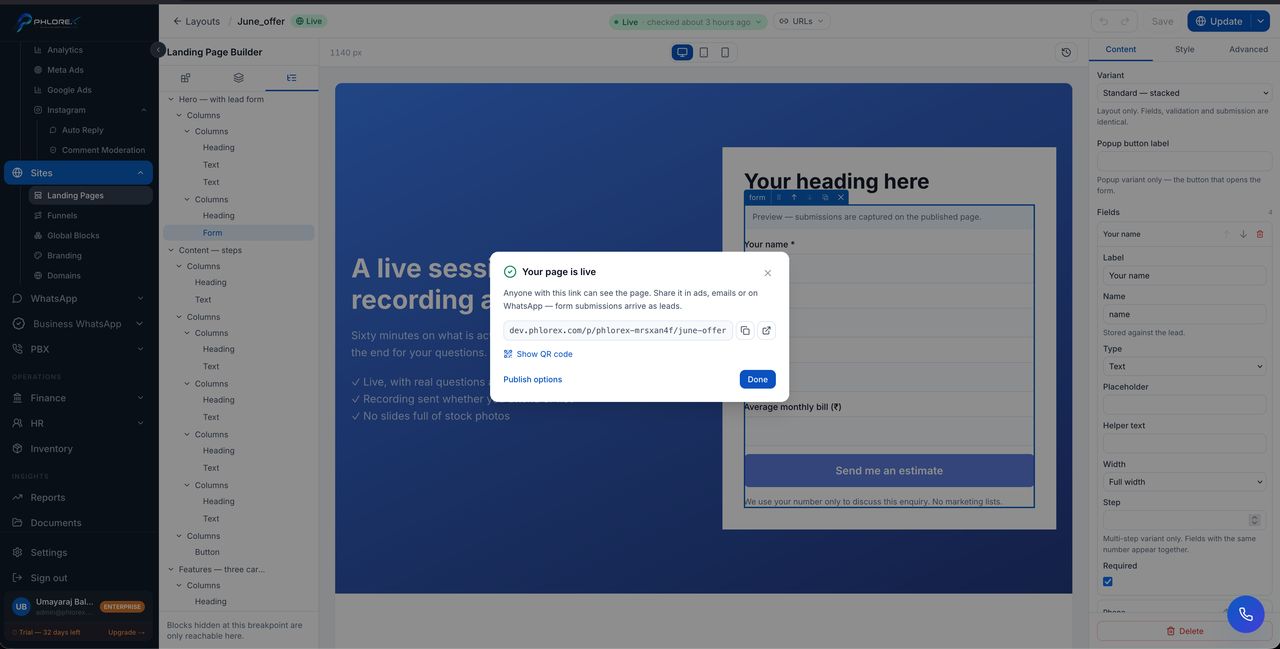
Publishing puts the page at a real address. Form submissions start arriving as prospects immediately.
- Preview on desktop and mobile.
- Check the page title, slug and meta description.
- Select Publish.
- Copy the link, or open it to check the live page.
The QR code
The confirmation offers Show QR code — a printable code for the page, intended for physical placement: a hoarding, a brochure, a visiting card, a site board.
A QR code on a site board is often the highest-converting thing on it, because whoever scans it is already standing at your property.
Where the page can be reached
| Address | Behaviour |
|---|---|
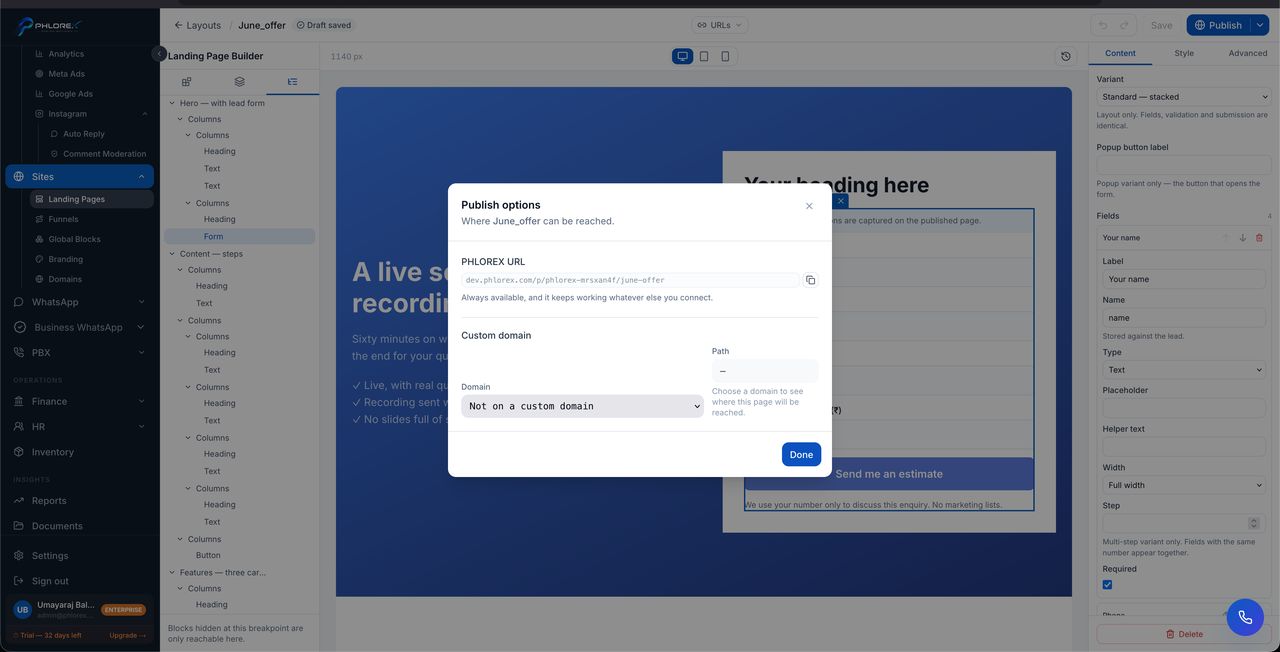
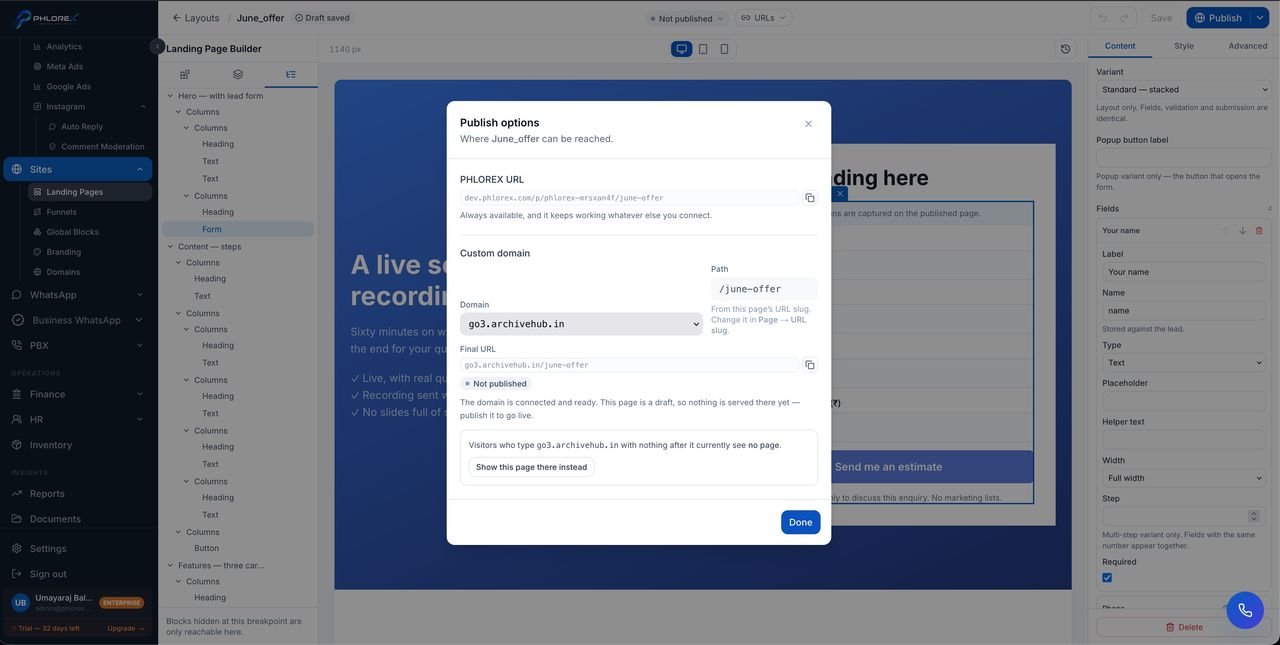
| PHLOREX URL | Always available, and it keeps working whatever else you connect |
| Custom domain | Your own domain and path, once one is connected and verified |
Until you connect a domain, that area explains none is connected and links you to Sites → Domains. Verified domains appear in the list automatically.
Adding a custom domain never retires the PHLOREX URL, so links already shared stay valid.
Changing a live page
Edit and select Update. Visitors see the old version until you do, so you can work on a live page without publishing half-finished changes.
The publish flow
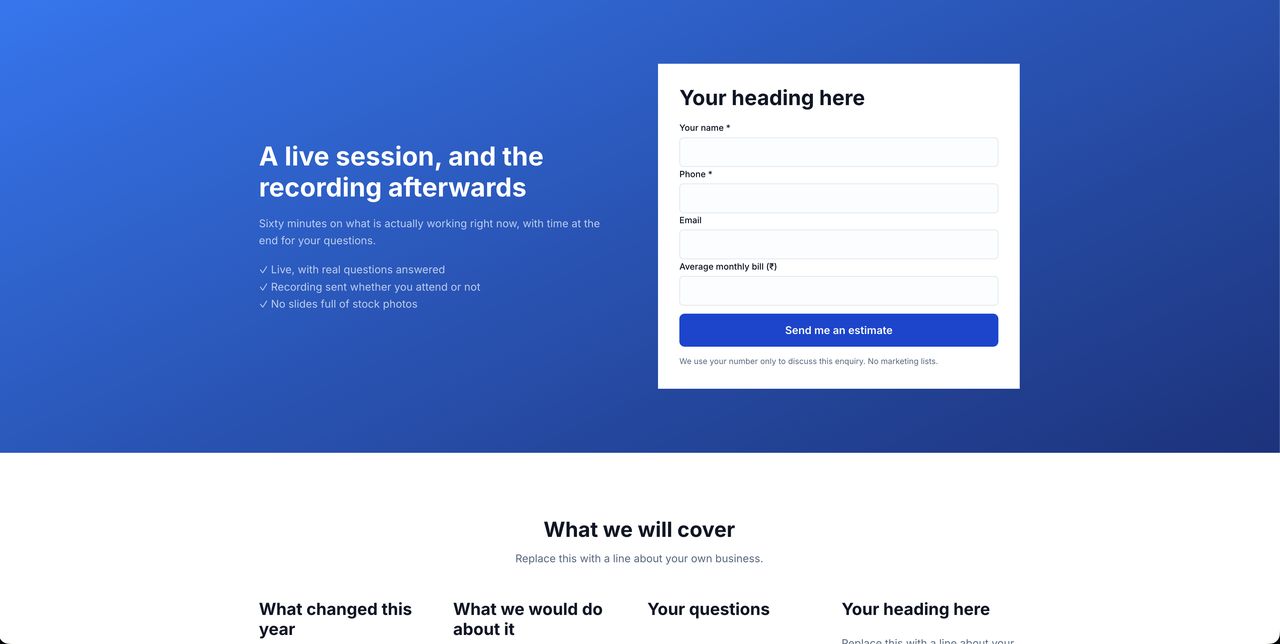
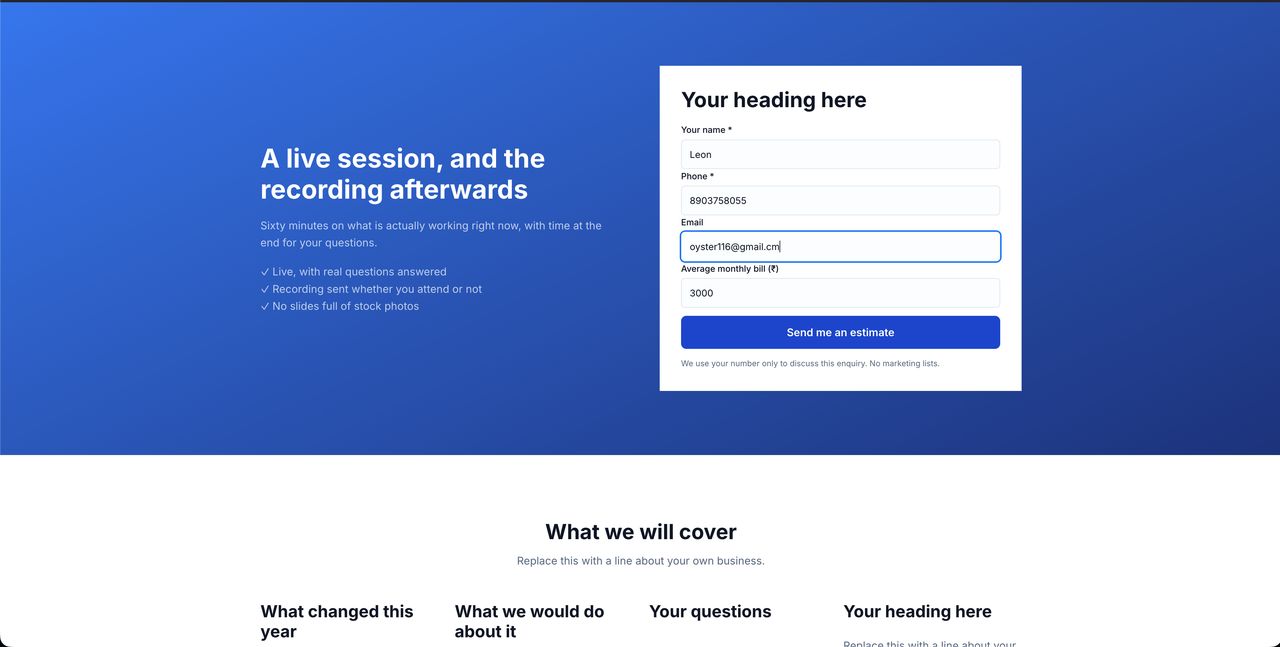
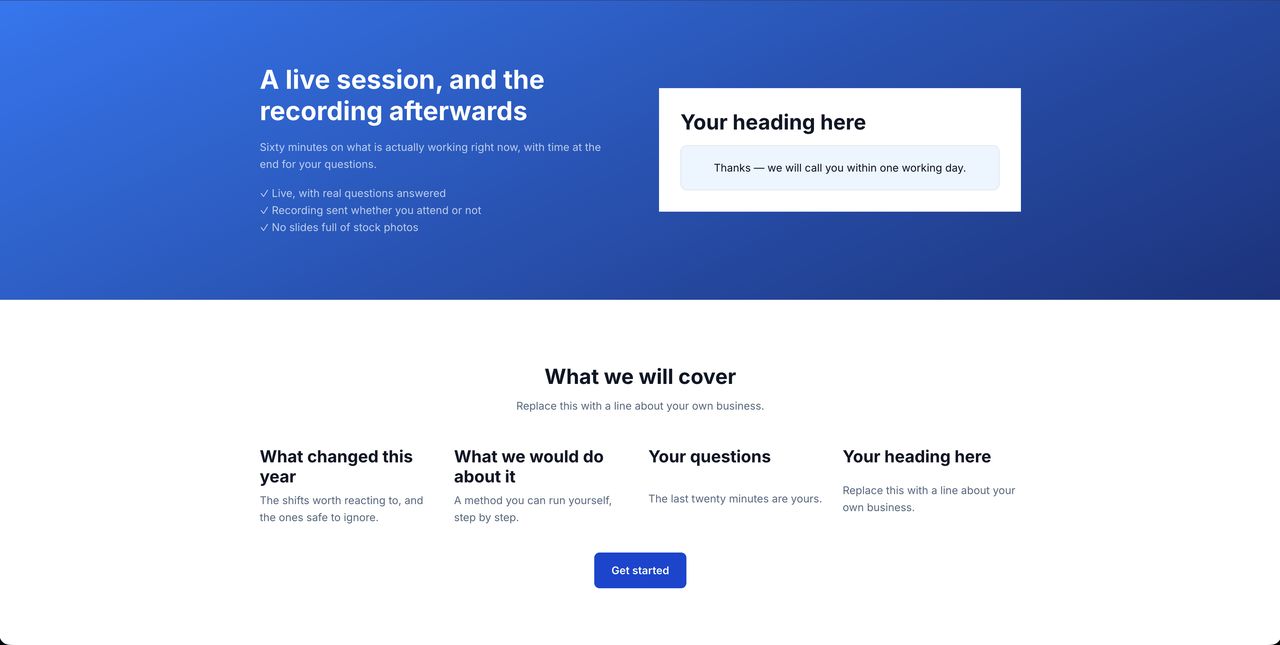
What the visitor sees
Cannot find what you need?
Something not behaving as described here? Tell us and we will fix the page.