
Browse help sections
Global blocks
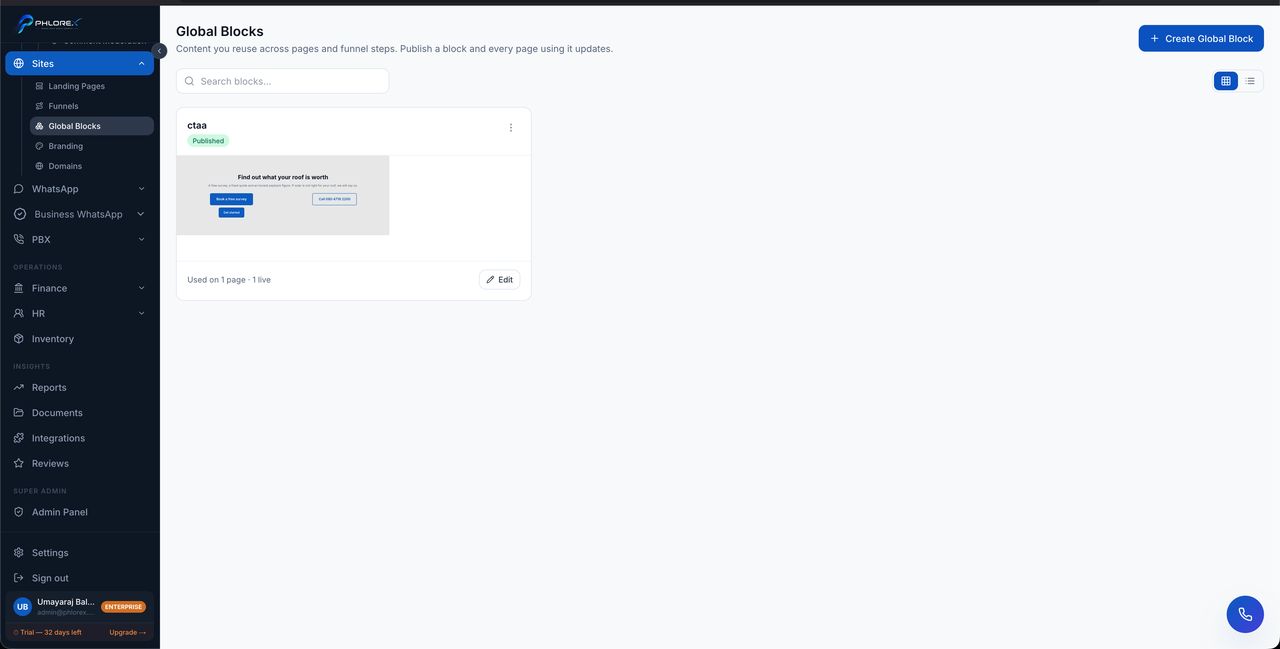
A global block is content used on many pages — a header, footer or contact strip — that you edit once and update everywhere.
Sites›Global Blocks
- Select New global block and build it.
- Save it.
- In the page builder, open the sections tab and insert it where you want it.
Take care
Pages reference a global block rather than holding a copy. Editing the block changes every page using it, and deleting it removes it from all of them. That is the point of the feature, and also its sharp edge.
The sections tab shows each global block with how many pages currently use it — check that number before editing or deleting one.
Tip
Ideal for anything that must stay consistent and changes occasionally: a phone number, an address, office hours, a compliance notice.
Cannot find what you need?
Something not behaving as described here? Tell us and we will fix the page.