
Browse help sections
The prospect workspace
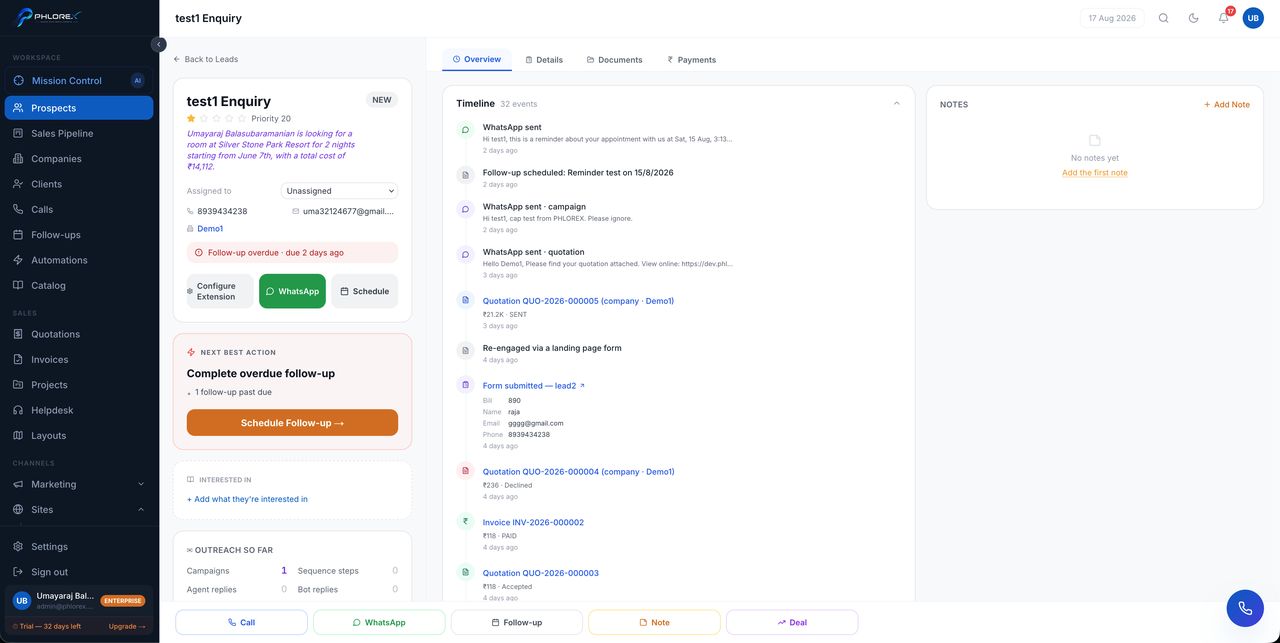
Opening a prospect gives you everything known about that person on one screen — what they asked for, what has been said, what has been sent, and what to do next. It is built so you can pick up a conversation you have never had and still sound informed.
| Area | What it tells you |
|---|---|
| Summary | Name, status, priority, contact details, city, linked company |
| Next best action | The single most useful thing to do now, and why |
| Timeline | Every event in order — quotations, invoices, messages, stage changes |
| Outreach so far | How much contact this person has already had, by channel |
| Notes | What your team has written down |
| Tabs | Overview, Details, Documents, Payments |
Next best action
LeadOS names one action and shows its reasoning — for example *qualified lead, never called* with *1 overdue follow-up*. It is a prompt, not an instruction; the reasoning is shown so you can disagree with it.
Outreach so far
Counts what has already been sent — campaigns, sequence steps, agent replies, bot replies, reminders, quotations, invoices and emails — and what is still allowed today. It exists to stop the commonest mistake in a shared inbox: contacting someone who has already heard from you three times this week.
Acting from here
The buttons along the bottom cover the whole loop without leaving the record: Call, WhatsApp, Follow-up, Note and Deal. Calling needs a PBX extension; if none is configured the screen offers to set one up rather than failing quietly.
Read the timeline before you call. Thirty seconds there is the difference between "I see you asked about Block B" and asking a customer to repeat themselves.
Working a prospect, start to finish
- Read the timeline before making contact.
- Check Outreach so far so you do not contact someone already contacted this week.
- Do what Next best action suggests, or something better if you disagree.
- Use Call, WhatsApp or Note from the bottom bar — each logs itself.
- Set the next follow-up before you close the record.
Cannot find what you need?
Something not behaving as described here? Tell us and we will fix the page.